Discover how cryptocurrency integrates with IT and cloud solutions for optimal business performance. Expert insights on blockchain technology implementation
Beginning with macOS Catalina 10.15, Apple introduced new security controls to better protect your computer. For example, apps are now required to ask your permission before accessing your webcam, microphone, or recording/sharing your screen. This has a direct impact on Microsoft Teams as all of these settings must be allowed to use MS Teams at its full capacity.
To configure your security settings for MS Teams, please do the following:
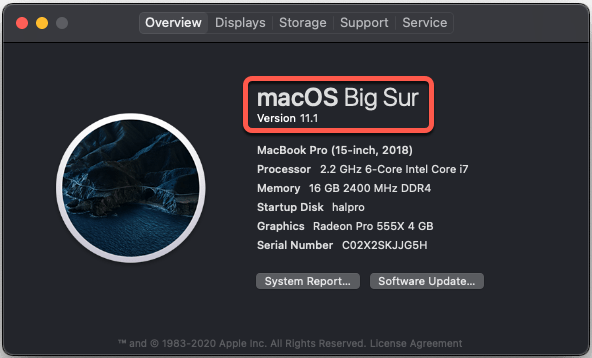
1. Check your macOS version – the following steps are only available in macOS 10.15 Catalina and macOS 11 Big Sur. To check your macOS version click the menu in the top-left corner, then select “About This Mac“. If you’re running macOS 10.15.x or macOS 11+, continue on:
2. Click the menu in the top-left corner, then select “System Preferences…“. From the window that appears, select “Security & Privacy”
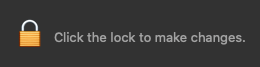
3. Click the padlock in the lower-left corner of the window. Enter your computer username and password – this will allow you to make the necessary changes.
4. You’ll need to allow MS Teams to access your Camera, Microphone, Accessibility, Files and Folders, and Screen Recording. To do this, select the item from the left column, scroll through the list of applications, and make sure that Teams is checked.
5. Repeat this process for:
* Camera * Microphone * Accessibility * Screen Recording
6. Quit and relaunch Microsoft Teams for these changes to take effect. Troubleshooting
PayPal Holdings Inc announced that it will allow customers in the UK to buy, sell, and hold cryptocurrencies starting from this week. This is the first time that PayPal will launch its crypto services outside of the United States.
The backstory – PayPal announced its entry into the crypto sphere with an announcement in October 2020. Earlier this year, PayPal announced its plans to allow the buying, selling, and holding of cryptocurrencies on its network. The company also enabled its users to spend digital assets at millions of merchants on its network.
PayPal Offers Crypto Services in the UK
PayPal’s crypto service now extends to the UK where users can purchase cryptocurrencies including Bitcoin, Bitcoin Cash, Ether, Litecoin, etc. for as little as $1. These services resemble PayPal’s services in the U.S., though there are transaction limits for UK customers.
Jose Fernandez da Ponte, vice president and general manager for blockchain, crypto, and digital currencies at PayPal, mentioned that PayPal is committed to working continuously with the UK regulators and they would like to contribute to the digital currencies going to play in the future of global finance and commerce.
Looking ahead – We may likely witness several leading companies gradually expanding their footsteps considering client demand.
On Wednesday, El Salvador became the first country to recognize Bitcoin as legal tender officially. The bill proposed by El Salvador President Nayib Bukele treats Bitcoin as a legal tender along with the U.S. dollar. Most of the nation’s legislature voted in favor of this bill, making it the first nation to adopt Bitcoin as a legal tender.
The details – The proposal for El Salvador to accept Bitcoin as a legal tender received a supermajority of votes. Sixty-two members from the legislature voted in favor of the bill, 19 in opposition, and 3 in abstentions. One of the major considerations, as per president Nayib Bukele, was that the step would boost financial inclusion in the country where 70% of citizens lack access to financial services.
What Does This Mean?
Under the provisioning of the bill, which will treat Bitcoin as a legal tender, it will mandate all businesses to accept Bitcoin as a payment method for goods and services. At the same time, the government will provide facilities for the entities who do not want to accept Bitcoin payment due to its volatile nature. In addition to this, citizens can pay their taxes in Bitcoin. There will not be capital gains taxes on Bitcoin transactions.
A trust fund will be set up at the Development Bank of El Salvador. The trust fund would sell some of the Bitcoin it receives for dollars to replenish the fund. Furthermore, Bukele also revealed that the country plans to offer permanent residency to any individual who invests three BTC into El Salvador’s economy.
Online shoppers who pay with their Coinbase Card via Apple Pay and Google Pay will begin enjoying crypto rebates.
In an announcement issued on Coinbase’s blog on Tuesday, the exchange service revealed that starting in June, some whitelisted customers will be selected to begin enjoying the crypto rebate feature.
As part of the announcement, Coinbase revealed that customers who use their Coinbase Card via Apple Pay and Google Pay can earn up to 4% in crypto rewards for online shopping.
“Splurging for guacamole with your Coinbase Card is a no-brainer when you can earn 1% back in Bitcoin or 4% back in Stellar Lumens,” the announcement added.
As previously reported by Cointelegraph, Coinbase became a direct Visa card issuer back in February 2020. By March 2020, Coinbase Card users in Europe could already utilize their cards via Google Play.
The Coinbase announcement comes amid significant growth in mobile phone payments in the United States. While mobile phone payment penetration in the U.S. still lags behind China, the sector experienced 29% growth in 2020.
Apart from receiving up to 4% in crypto rebates, the exchange said it has other plans to expand its Coinbase Card reward program. Since June 2019, Coinbase Card has added more countries to its coverage while increasing its supported digital currencies to even include stablecoins like Dai.
Crypto debit cards have continued to be a significant part of efforts to promote retail cryptocurrency utilization for microtransactions. Meanwhile, payment giants like PayPal have also entered the retail crypto payment arena, with U.S. customers able to pay for online shopping with Bitcoin (BTC).
According to a Mastercard survey from May, 40% of respondents across the globe expressed interest in adopting crypto payments in 2022
The volatility of the cryptocurrency space was on full display again on Monday, as several altcoins experienced gigantic price rebounds following the market crash of the past week or so.
Two altcoins in particular doubled in value in just over 12 hours leading into Monday morning, as Polygon (MATIC) and Maker (MAKER) recorded over 100% growth amid a strong market bounce.
Polygon climbed from a valuation of $0.75 late on Sunday afternoon, to a peak of $1.51 by early on Monday morning — marking 101% gains in less than a day.
The rapid rebound comes shortly after Polygon suffered 72% losses in less than a week, as it fell from a valuation of $2.68 to $0.74 since May 18.
A similar pattern was observed in the governance token of the MakerDAO protocol, Maker, on Monday. The coin price rose from $1,835 on Sunday, to $3,694 by Monday morning, equating to a 101% increase.
Like Polygon, Maker’s miraculous pump follows a 71% decline since the coin hit an all-time high in early May, and a 63% decline in the past week alone.
The intensity of the rebounds experienced by coins on the day appeared to be tied to the severity of their recent market crashes. As such, the altcoin market proved to be the ripest venue for day traders on Monday, many of whom could feasibly have doubled their money between supper and breakfast.
Bitcoin (BTC) and Ether (ETH) were subject to less dramatic rebounds, with the foremost cryptocurrencies gaining 17% and 32% respectively. Both coins experienced less volatility throughout the duration of the recent market pump, and their subsequent losses proved to be less severe, with BTC and ETH losing 51% and 60% respectively since their recent all-time highs.
Many traders rejoice in such volatility, yet the harsh fact remains that day trading is a full-time job, and according to some estimates as little as 1% of day traders actually turn a profit.
This article will show you the steps involved to setup Acropolis File Services (AFS) on a cluster running AOS 5.0.
Acropolis File Services (AFS) uses a scale-out architecture that provides Server Message Block (SMB) file shares to Windows clients for home directory and user profiles. Acropolis File Services consist of three or more file server VMs (FSVM). There is one file server maximum per cluster image. A set of file server VMs is also known as a Acropolis File Services cluster. Multiple file server clusters can be created on a Nutanix cluster.
With the AOS 5.0 release, Acropolis File Services can be used when running ESXi or AHV as the hypervisor on your Nutanix cluster.
One of the prerequisites for AFS is to setup a Cluster Data Services IP. We can set that up by clicking on the cluster name in Prism. In the sample below, I’m clicking on the cluster name.
Setup the External Data Services IP Address by typing in a new unused IP address into the field as shown below. Then select the “Save” button.
File Services
Now we can start the configuration of File Services by selecting the main menu in Prism, then choose “File Server” from the dropdown.
To begin creating a new file server, click on the button labeled “+ File Server” in the upper right-hand side of the screen.
File Services Pre-Check
The system will now show you a few “pre-checks” that are performed to make sure the requirements are met. If any of these items do not have a blue check-mark next to them, go ahead and resolve the item then try it again. To continue, click on the “Continue” button.
Note: The error “WARNING: The current license level does not allow for the use of this feature.” is only a Warning. You can still proceed to use the feature (and test it out), however please contact your Nutanix Account team to resolve.
File Server Basics
Next, fill in the File Server details:
(1) Name: This is the name of the File Server that will be used when browsing to the file share.
(2) File Server Size: This is the amount of storage reserved for File Services (from the Nutanix Storage Pool). Currently, a minimum of 1 TB is required.
(3) Number of File Servers VMs: This is the number of file servers that will be deployed in the cluster. A minimum of 3 VM’s is needed to make a distributed file server. Additional VM’s can be added later through the “Scale Up” wizard.
(4) Number of vCPUs per File Server VM: This is the amount of vCPU’s assigned to each File Server VM.*
(5) Memory Per File Server VM: This is the amount of RAM assigned to each File Server VM.*
The Client Network screen will be shown outlining how the File Server VM’s will communicate out onto the network, to DNS, AD and to the end users.
(1) Pick the VLAN that you want this traffic on from the dropdown under Network Details, “VLAN“. In my example below, I only have 1 network which is pretty flat. If yours is like this, just choose your standard VLAN.
(2) Type in the network Gateway and Subnet Mask for the network you chose.
(3) Allocate a range of at least 3 IP Addresses, which will be used for the File Server VM’s client-side traffic. Once you fill in the range, click on the “+Add” button.
(4) The DNS and NTP settings should auto-populate (pulled from the cluster), but scroll down and verify the settings (Note: the NTP server should be the domain controller!)
Once completed, click on the “Next” button to continue.
Storage Network Configuration
The Storage Network screen will be shown outlining how the File Server VM’s will communicate with the Nutanix Controller VM’s.
(1) Pick the VLAN that you want this traffic on from the dropdown under Network Details, “VLAN“. In my example below, I only have 1 network which is pretty flat. If yours is like this, just choose your standard VLAN.
(2) Type in the network Gateway and Subnet Mask for the network you chose.
(3) Allocate a range of at least 4 IP Addresses, which will be used for the File Server VM’s storage traffic. Once you fill in the range, click on the “+Add” button.
Once finished, click on the “Next” button to continue.
Joining Active Directory
To join the file services to your active directory domain, type in your active directory domain name (1).
Type in a username and password for a user that will have admin level privileges to join the domain (2).
Once completed, click on the “Next” button to continue.
Summary and Protection Domain Setup
On the Summary screen, the wizard will show you how the file services will be configured. It will also ask you what you want to call the Protection Domain that will be created automatically. As noted, don’t forget to edit the Protection Domain (under the Menu –> Data Protection screen) to setup schedules and potential replication. For more information on setting up the Protection Domain, refer to the Acropolis File Services Guide located here: https://portal.nutanix.com/#/page/docs/details?targetId=Acropolis-File-Services-Guide-v20:acr-file-server-async-dr-c.html
As noted near the bottom of the screen, create user directories in the root of the home share for optimal performance. AFS creates a default home share for user home directory and user profiles. Individual user home directories must be created at the root of the Home share for optimal performance.
Click on the “Create” button to start the File Services deployment.
Monitoring File Services Deployment
You can monitor the File Services Deployment from the “Tasks” menu icon at the top of the screen.
Monitor for any Errors in Deployment
Prism will show you any errors that might show up during the deployment. In my example below, you’ll see that it couldn’t join the Active Directory Domain for some reason.
In my example, the file server couldn’t join the Active Directory domain and I needed to try again. By selecting the File Server in the list, an option will appear to “Join Domain”. I was able to try again and this time it worked. Note: Your domain needs to be at the functional level of Windows Server 2008 R2 or higher.
Successful Deployment
Once the deployment and join to the domain is completed, the tasks icon will show joining the domain completed successfully and a default “home” share was created.
Once successfully deployed, you can now browse to the file server using the \\file-server-name path syntax, which you’ll see the default “home” share that has been created.
Quota Management
By default, all users accessing the “home” share do not have any quotas in place. If you would like to change this, select the “home” share from the “Share” submenu, and click on the “Quotas” tab. Here you can edit the existing default quota or add additional quota policies.
Enabling Windows Previous Versions
A Windows Previous version allows you to create and view manual or automatic snapshots of share (or volumes) when the share is in use. The share snapshots are read-only and point-in-time (snapshots taken at a certain time) copies. You can view or restore removed or overwritten files. This allows you to choose a share snapshot from the same file at different times during the file’s history. Snapshots can be scheduled for regular or frequent intervals to provide same-day protection against accidental deletions. WPV can be enabled for each object in a share.
WPV is disabled by default. You can enable WPV during or after share creation. Share updates are supported for both general-purpose and home shares.
To enable or disable Windows Previous Versions after share creation, do the following.
In the Prism web console, go to Home > File Server.
Click the Share tab in the view selector.
Select a share and click Update in the action links.
Select Enable Windows Previous Version (WPV) to check (enable) or clear (disable) the box.
Click Save. Be sure the WPV box is checked to enable.
Microsoft is set to invest $1bn in Malaysia to set up data centres in the country over the next five years, reported Reuters on Monday.
According to a statement from the Malaysian Prime Minister, the technology giant will make the investment through a partnership programme with government agencies and local companies.
In February, the government had granted special permission to Microsoft, Google, Amazon and Telekom Malaysia to build data centres and provide cloud services.
Investments from those cloud service providers were expected to total between $2.91bn-$3.64bn over the next five years.
As part of the Bersama Malaysia initiative, Microsoft would establish its first “datacentre region”, consisting of multiple data centres in Malaysia to manage data from several countries, Prime Minister Muhyiddin Yassin said at an event marking the launch of the programme.
“The upcoming datacenter region will be a game-changer for Malaysia,” Microsoft Executive Vice President Jean-Philippe Courtois said in a statement, adding that it would enable the government and businesses to “transform” their operations.
Included in the programme was assistance from Microsoft to help up to a million Malaysians sharpen their digital skills by the end of 2023.
The price of ETH has hit a new all-time high of more than $2,060, according to data from TradingView.
ETH first breached $2,000 in late February. The previous all-time high $2,041, reached on Feb. 20. Since then, it’s dipped back below the $2,000 level until now.