Discover how cryptocurrency integrates with IT and cloud solutions for optimal business performance. Expert insights on blockchain technology implementation
Reconfiguring vSphere HA fails for several hosts in the cluster, but some elect into primary or secondary status.
After upgrading to vCenter Server 8.0.3, HA enabled clusters fail to configure, where only a few hosts elect properly Messages in fdm.log mention “SSL Async Handshake Timeout” when contacting other hosts
fdm.log also contains messages similar to the following when attempting to contact the master FDM host
SSL Async Handshake Timeout : Read timeout after approximately 25000ms. Closing stream SSL
Failed to SSL handshake;
Environment
vCenter Server 8.0.3
Cause
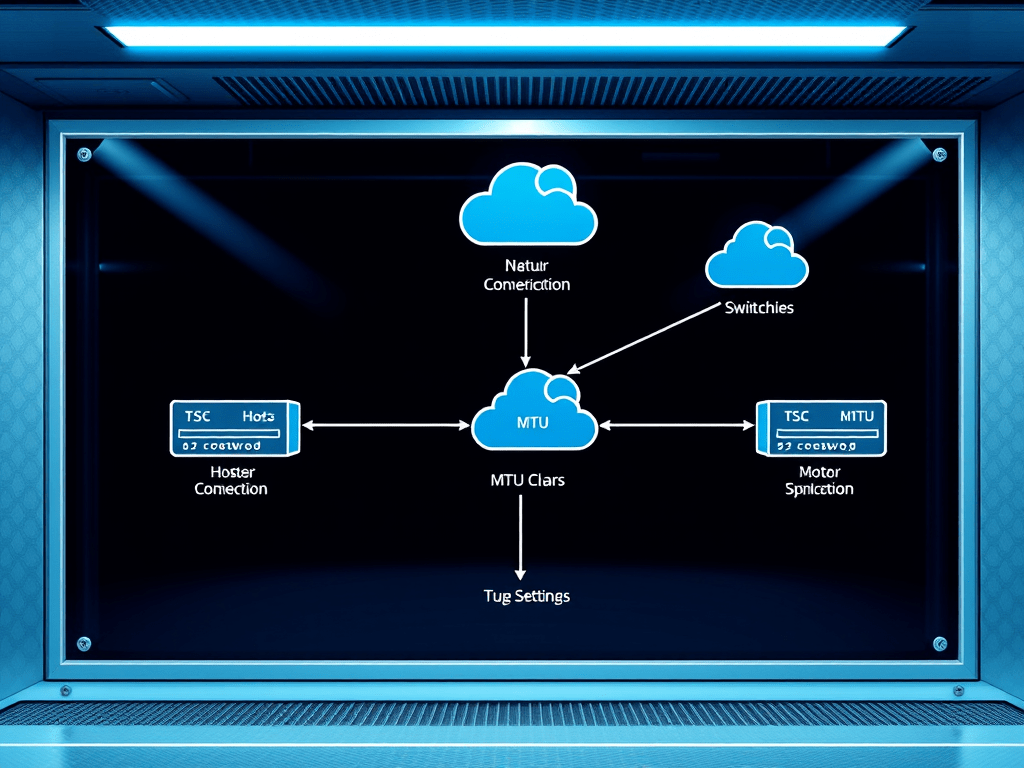
MTU Mismatch on Management network. FDM does support Jumbo Frames, but the MTU setting has to be consistent from end to end on every device.
Resolution
Check MTU settings for the vmk, vmnic, and vSwitch/DVS involved with the Management network on each host to confirm the mismatch.
Confirm the issue using network commands at the ESXi shell:
vmkping -I vmkX x.x.x.x
vmkping using the vmk for the Management network is successful between all or most hosts
vmkping -d -s 8972 x.x.x.x
vmkping using jumbo frames Management network only works between elected hosts with their MTU set correctly
openssl s_client -connect x.x.x.x:8182
From the primary agent host to one of the hosts that isn’t electing will not return the SSL certificate. Doing so between elected hosts returns the SSL certificate as expected.
Edit the device used for the Management network that is set incorrectly and change the MTU to 9000.
Broadcom Inc., is modifying our authentication technology and will require you to activate your account after the transition is complete on January 21, 2025.
To complete the transition of your Broadcom Profile please follow the steps below.
Resolution
After the transition to the new authentication technology is complete on January 21, 2025, upon first logging into the Broadcom Support Portal, you’ll be required to complete some/all of the following steps:
Navigate to the Broadcom Support Portal and click Login in the upper right corner.
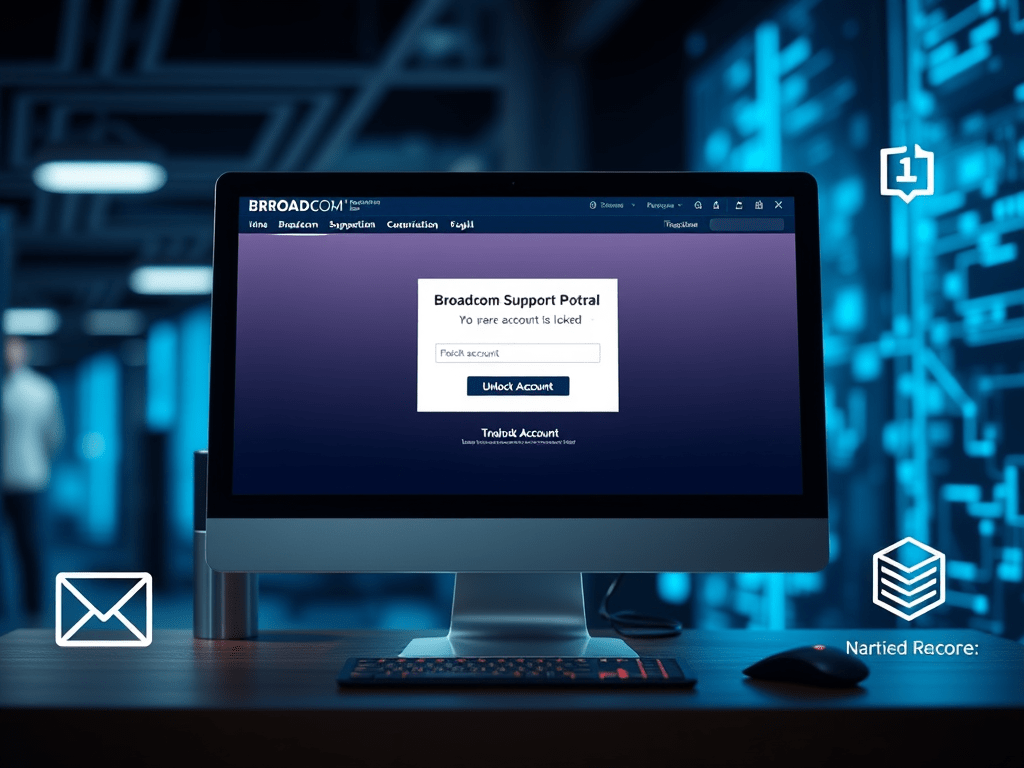
Enter your Broadcom Account email address after which you’ll receive a message stating “Your account is locked”. Click Unlock Account.
Select Email Verification to unlock your account.
NOTE: SMS Verification is not supported.
You’ll then receive a confirmation message.
You’ll receive a password reset email confirmation along with a unique URL to reset your password.
Enter a new password and click Reset Password.
You’ll receive a confirmation message stating your password has been successfully reset.
If your Broadcom Account was an Enterprise Level Account (i.e. associated with one or more support site IDs) you’ll also be required to enable Multi-Factor Authentication (MFA).
Select your preferred MFA option to complete your account migration.
To upgrade from VMware 6.5 to 7 using ESXCLI, you can follow the steps below ¹:
Verify that your system meets the upgrade requirements. See ESXi Requirements ¹.
Prepare your environment before upgrading. See Before Upgrading ESXi Hosts ¹.
Determine where you want to locate and boot the ESXi installer. See Media Options for Booting the ESXi Installer ¹.
Connect to the ESXi host using SSH.
Put the host into maintenance mode. See Enter Maintenance Mode for a Host ¹.
Run the following command to stage the upgrade: esxcli software profile update -p ESXi-7.0.0-xxxxxxx-standard -d /vmfs/volumes/datastore/ESXi700/ESXi-7.0.0-xxxxxxx-standard.zip ¹.
Run the following command to start the upgrade: esxcli software profile update -d /vmfs/volumes/datastore/ESXi700/ESXi-7.0.0-xxxxxxx-standard.zip -p ESXi-7.0.0-xxxxxxx-standard ¹.
After the upgrade is complete, reboot the host. See Reboot the Host After an Upgrade ¹.
Please note that the details and level of support for an upgrade to ESXi 7.0 depend on the host to be upgraded and the upgrade method that you use ¹. Verify that the upgrade path from your current version of ESXi to the version to which you are upgrading is supported ¹. For more information, see the VMware Product Interoperability Matrices at ¹.
If you’re wondering how to use ChatGPT, you’re not alone.
This intelligent chatbot, developed by OpenAI, took the internet by storm in late 2022, promising a conversational tone thanks to its machine learning.
It isn’t just there for a quick chat however, as ChatGPT can answer questions on a range of topics; provide definitions, explanations and recommendations; provide problem-solving advice; and even generate text on a given topic (helpful for writing or translating).
This article is here to show you how to use ChatGPT. So, if that’s what you’re here for, all you need to do now is read on.
How to use ChatGPT
Note: the following steps were taken using Chrome browser, but as ChatGPT runs in a web page, you should be able to recreate the steps using a browser on any device.
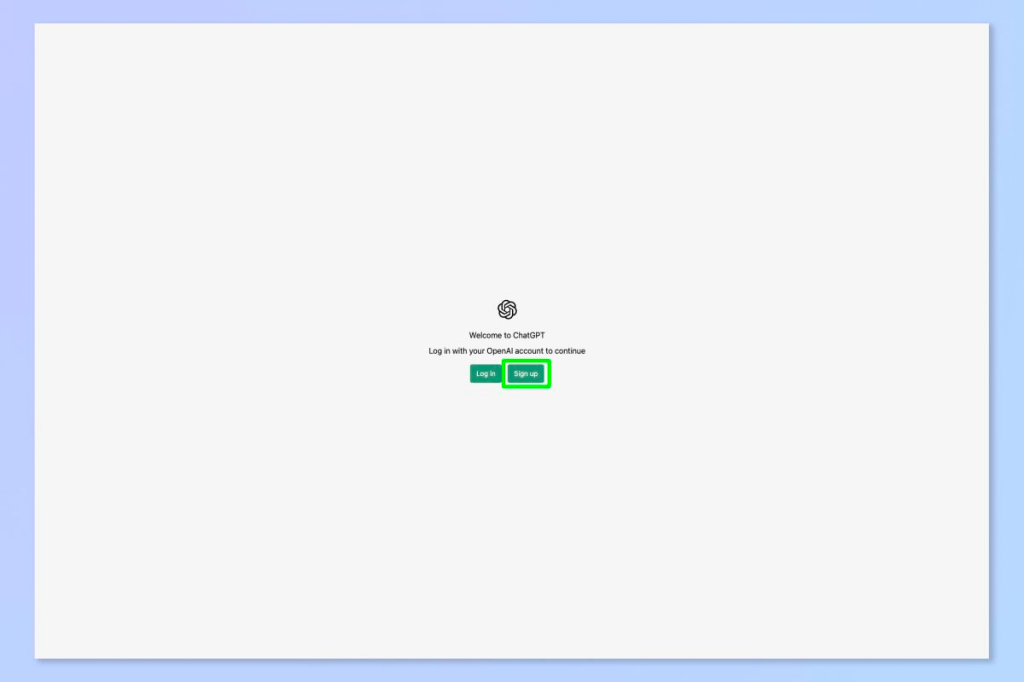
1. Head to chat.openai.com(opens in new tab). You’ll need to have an account to use ChatGPT so either select Log in to use an existing account, or select Sign up to create a new one.
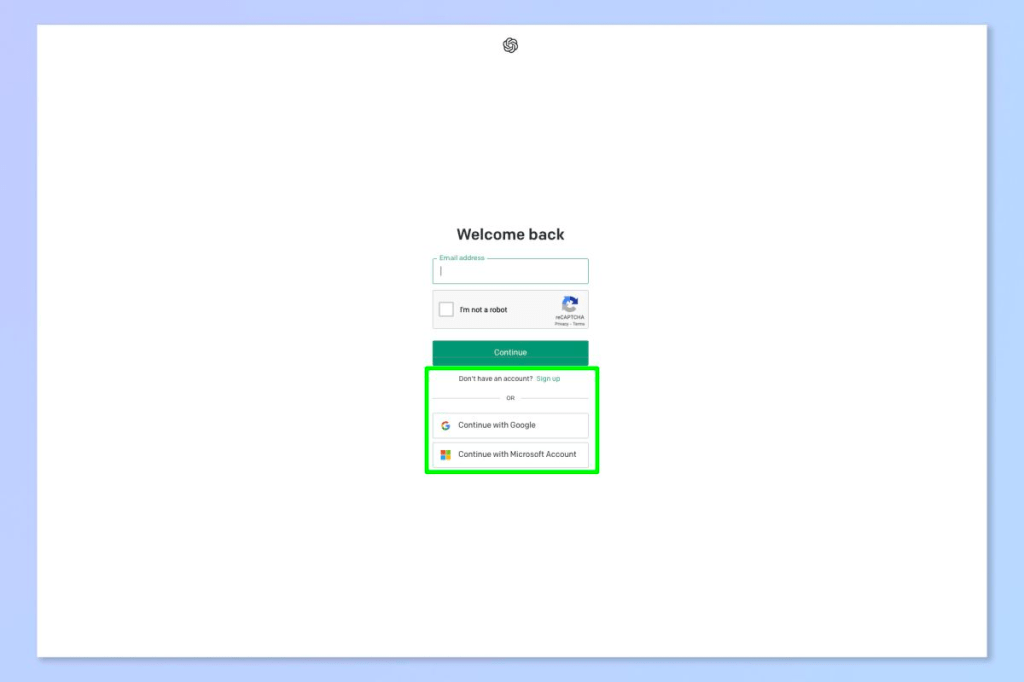
2. Select Sign up again and follow the steps to create an account manually, or select Continue with Google/Microsoft to log in using one of those accounts. Here, we’re using a Google account.
3. Enter your name and select Continue.
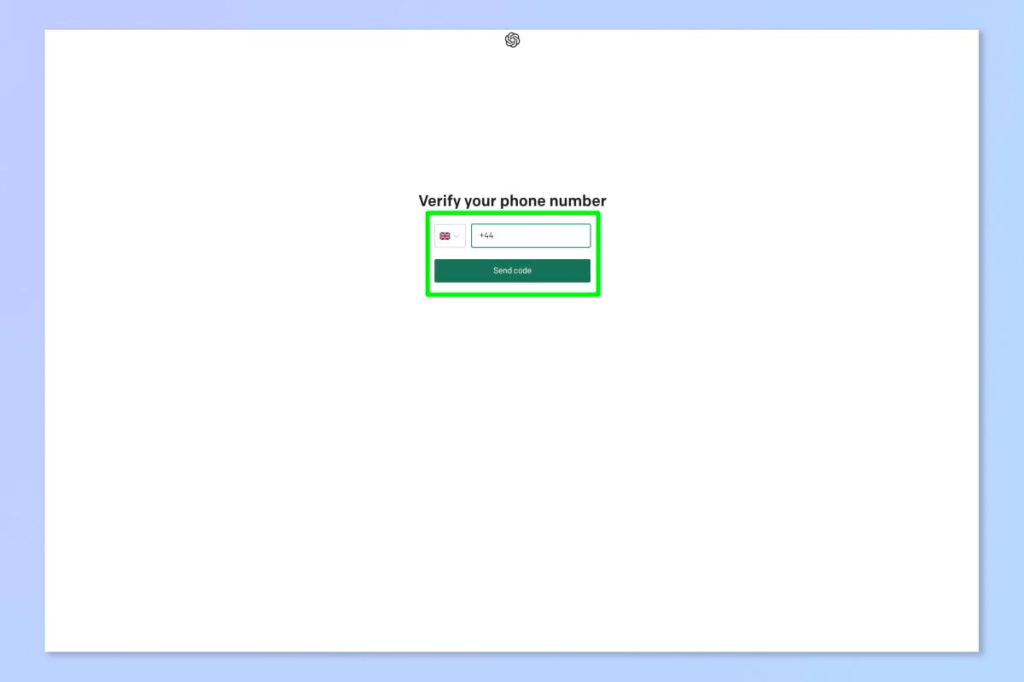
4. You’ll need to link a phone number. Select your region and enter a phone number, then select Send code.
5. Enter the code you receive.
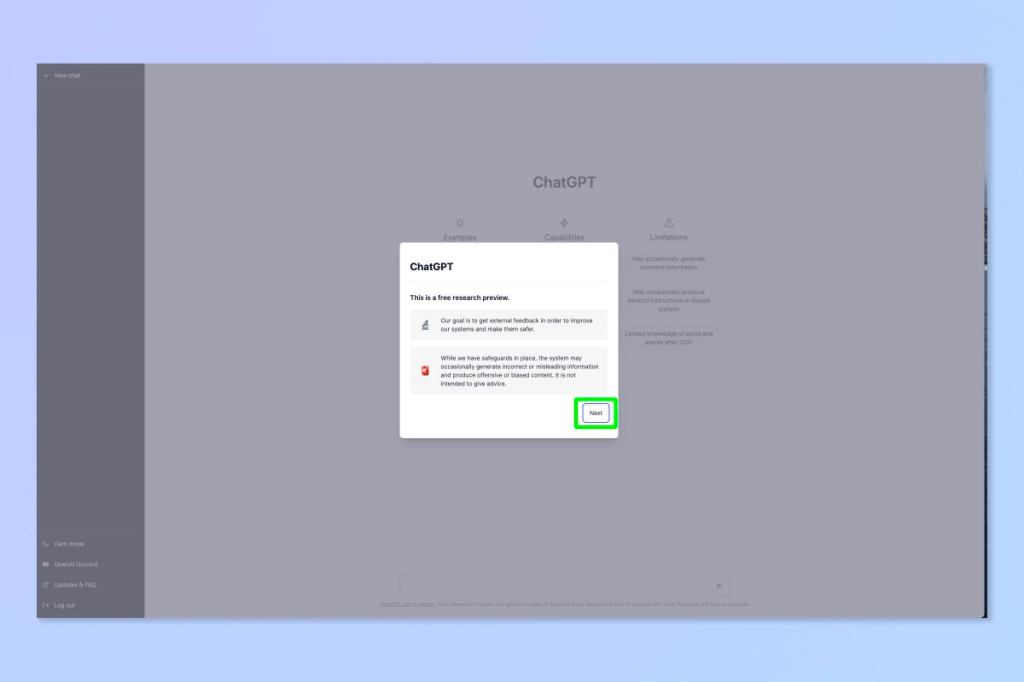
6. You’re in. Read the message that pops up and then select Next.
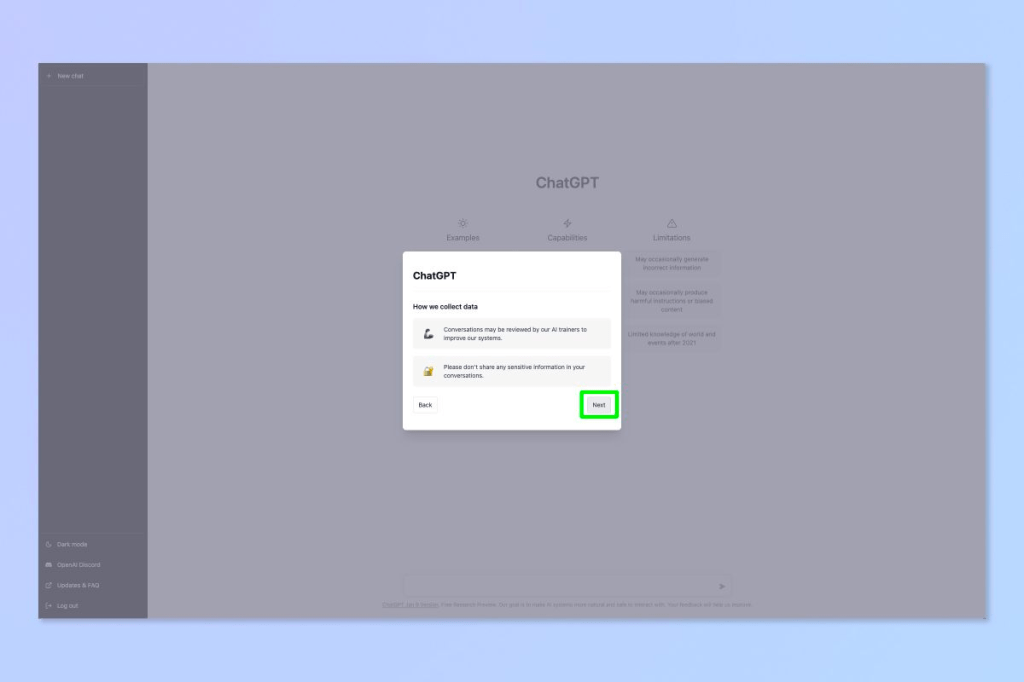
7. Read the second message about data collection and privacy, then select Next.
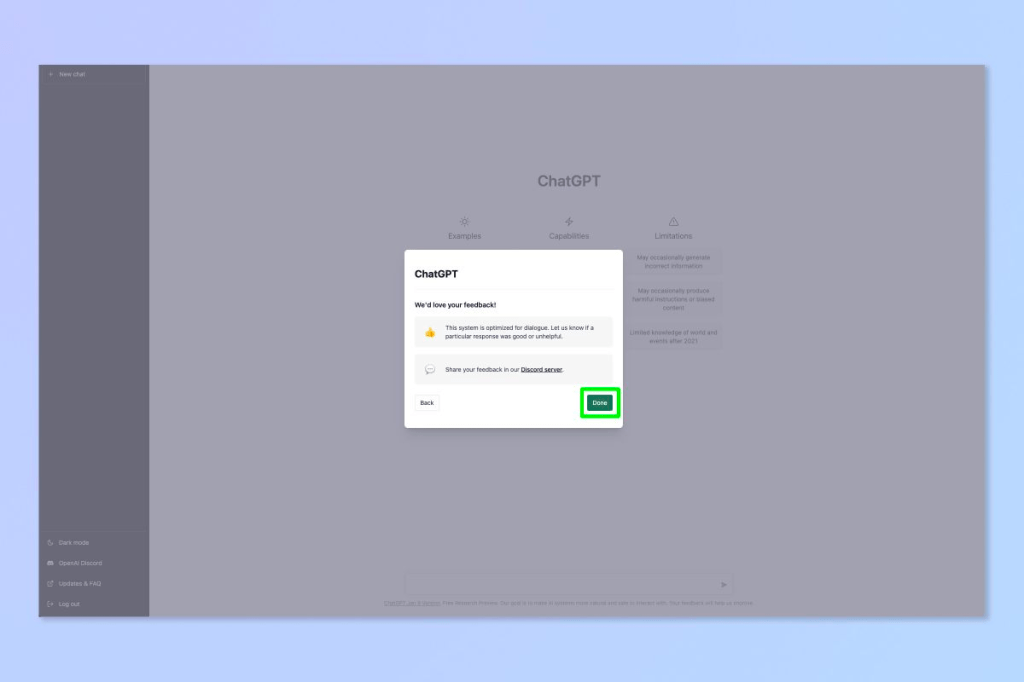
8. Read the third message asking for feedback, then select Done.
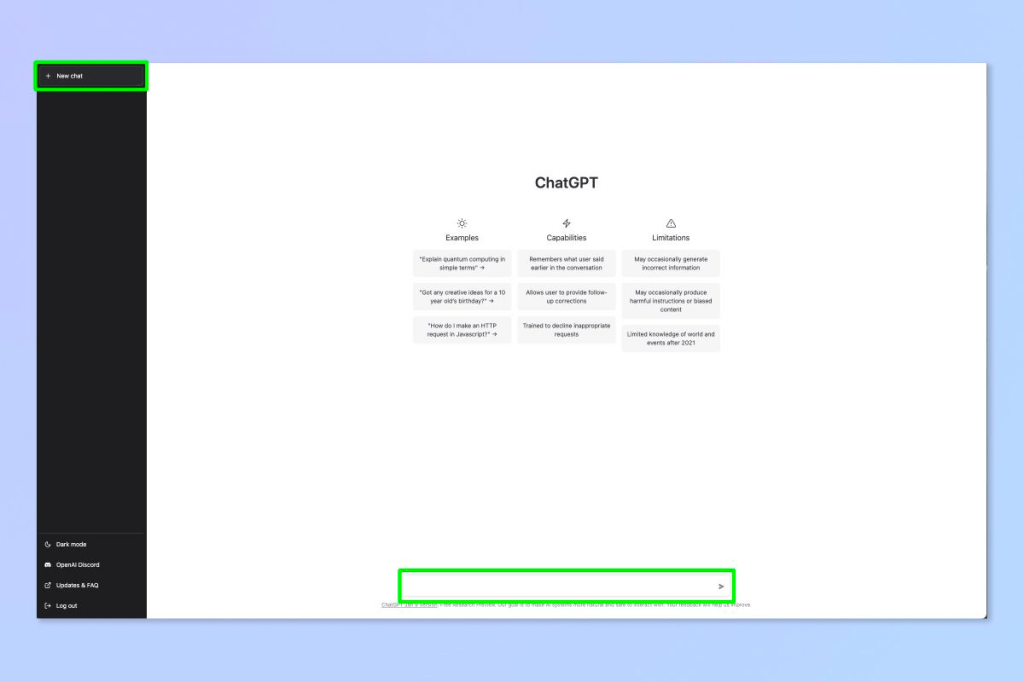
9. Now you’re all set up. Type in a question in the chat box at the bottom to get started. Select New chat in the top left at any time to begin a new conversation.
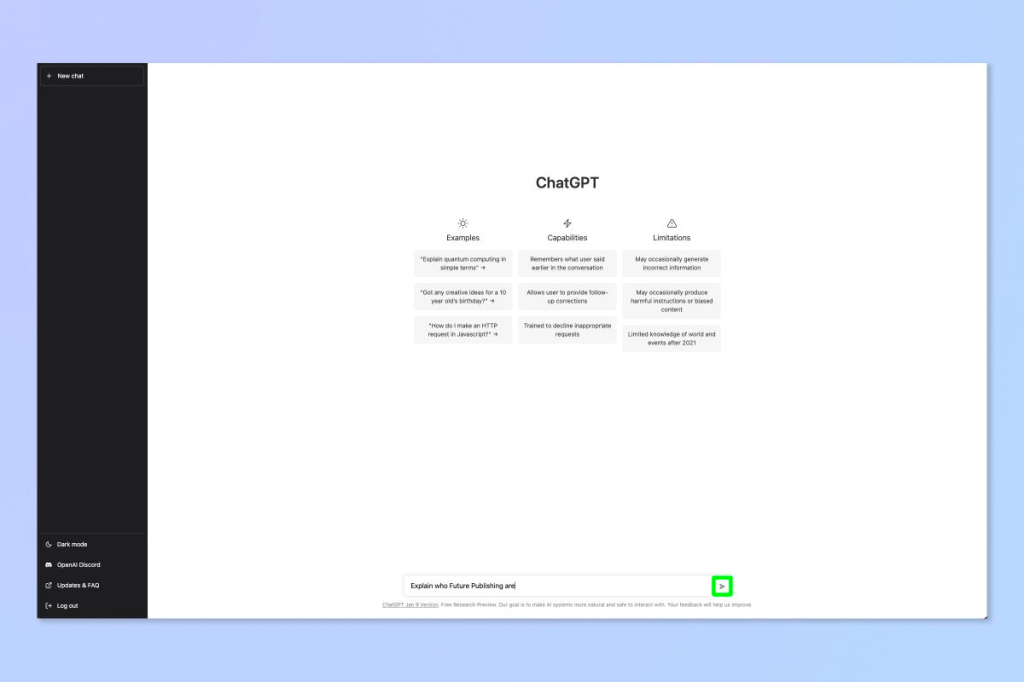
10. Select the send button.
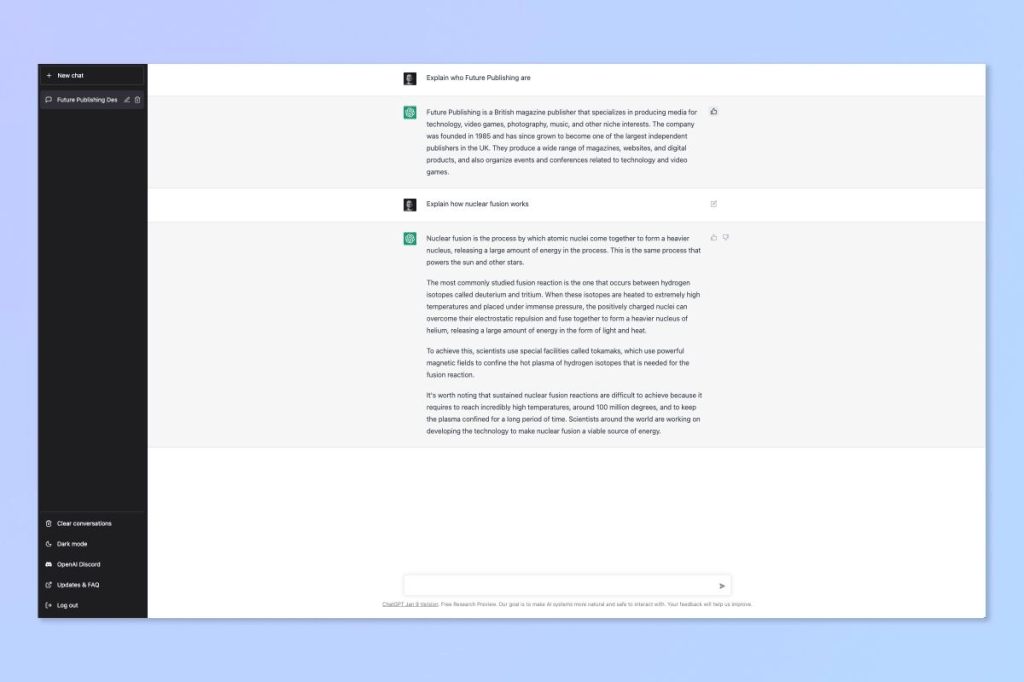
11. See the response. The more complicated your question, the more extensive an answer you’ll receive.
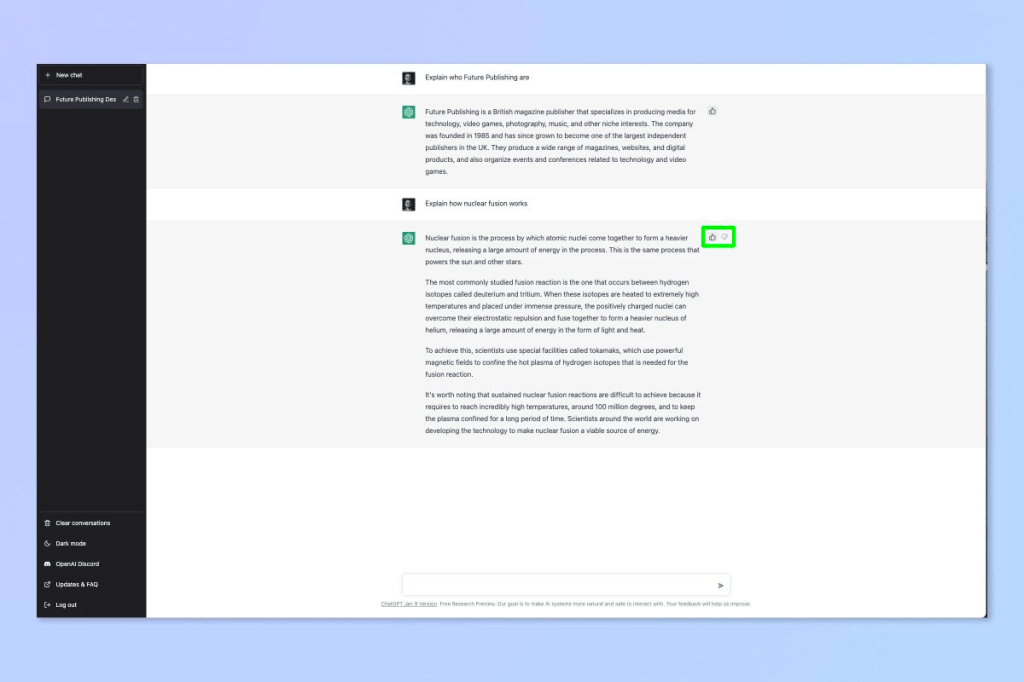
12. OpenAI want feedback for ChatGPT, so select the like/dislike button next to an answer to submit your thoughts.
13. Type your feedback and select Submit feedback.
There you have it — you now know how to use ChatGPT. Enjoy finding out how quantum mechanics works. Bear in mind that ChatGPT will sometimes make stuff up to fill in any gaps it doesn’t know. For that reason, you certainly don’t want to rely on it for any serious work where accuracy is paramount.
Apple today announced a second-generation full-size HomePod, available to order starting today for $299 in white and midnight color options. In-store availability and deliveries to customers will begin Friday, February 3 in select countries.
Setting up a new Nutanix host involves several steps, including preparing the hardware, installing the Nutanix software, and configuring the network settings. Here is a general outline of the process:
Prepare the hardware by installing the necessary components, such as the CPU, memory, and storage devices.
Download the Nutanix software image and create a bootable USB drive.
Connect to the host using a monitor and keyboard, and boot the host using the USB drive.
Follow the prompts to install the Nutanix software. This process may take several minutes to complete.
Once the installation is complete, you will be prompted to configure the network settings for the host.
Log in to the Nutanix web console using the IP address of the host and the default credentials.
Configure the network settings and other basic settings, like the time zone, host name, and cluster settings.
After the host is configured, you can add it to an existing cluster or create a new cluster.
Once cluster is created, you can add more nodes to the cluster, and configure the storage and network settings for the cluster.
The host is now ready to use, you can start creating virtual machines and deploying applications on the cluster.
Note: it is important to consult Nutanix documentation and best practices as this is a high level explanation and may not cover all the details.
This article will show you the steps involved to setup Acropolis File Services (AFS) on a cluster running AOS 5.0.
Acropolis File Services (AFS) uses a scale-out architecture that provides Server Message Block (SMB) file shares to Windows clients for home directory and user profiles. Acropolis File Services consist of three or more file server VMs (FSVM). There is one file server maximum per cluster image. A set of file server VMs is also known as a Acropolis File Services cluster. Multiple file server clusters can be created on a Nutanix cluster.
With the AOS 5.0 release, Acropolis File Services can be used when running ESXi or AHV as the hypervisor on your Nutanix cluster.
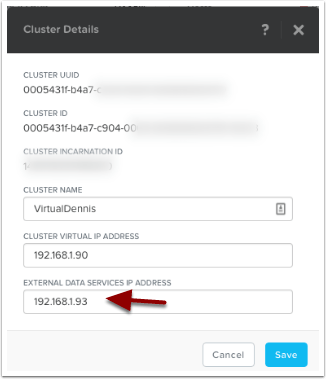
One of the prerequisites for AFS is to setup a Cluster Data Services IP. We can set that up by clicking on the cluster name in Prism. In the sample below, I’m clicking on the cluster name.
Setup the External Data Services IP Address by typing in a new unused IP address into the field as shown below. Then select the “Save” button.
File Services
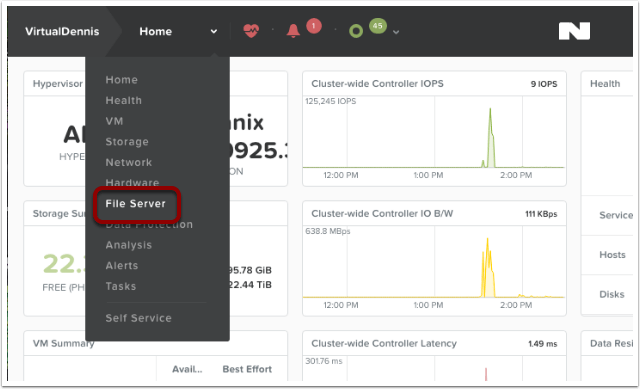
Now we can start the configuration of File Services by selecting the main menu in Prism, then choose “File Server” from the dropdown.
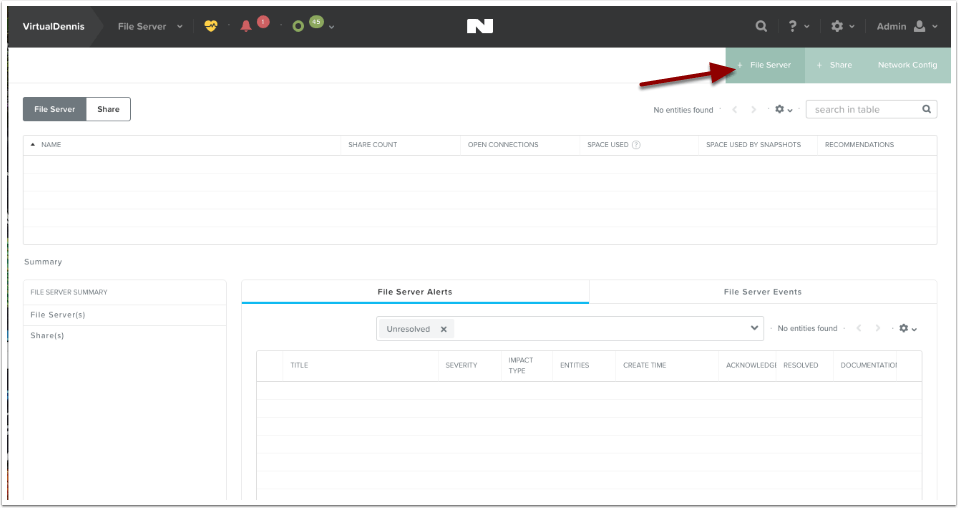
To begin creating a new file server, click on the button labeled “+ File Server” in the upper right-hand side of the screen.
File Services Pre-Check
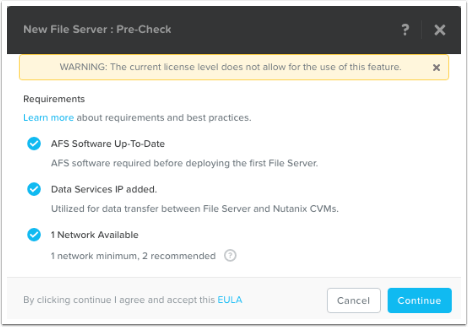
The system will now show you a few “pre-checks” that are performed to make sure the requirements are met. If any of these items do not have a blue check-mark next to them, go ahead and resolve the item then try it again. To continue, click on the “Continue” button.
Note: The error “WARNING: The current license level does not allow for the use of this feature.” is only a Warning. You can still proceed to use the feature (and test it out), however please contact your Nutanix Account team to resolve.
File Server Basics
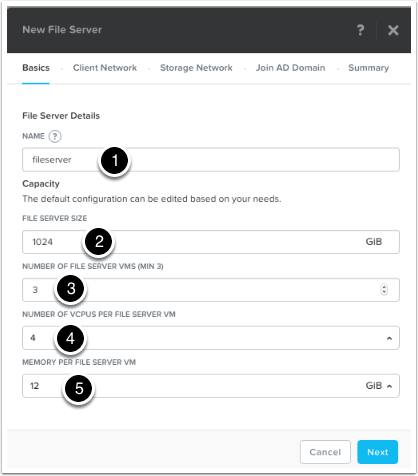
Next, fill in the File Server details:
(1) Name: This is the name of the File Server that will be used when browsing to the file share.
(2) File Server Size: This is the amount of storage reserved for File Services (from the Nutanix Storage Pool). Currently, a minimum of 1 TB is required.
(3) Number of File Servers VMs: This is the number of file servers that will be deployed in the cluster. A minimum of 3 VM’s is needed to make a distributed file server. Additional VM’s can be added later through the “Scale Up” wizard.
(4) Number of vCPUs per File Server VM: This is the amount of vCPU’s assigned to each File Server VM.*
(5) Memory Per File Server VM: This is the amount of RAM assigned to each File Server VM.*
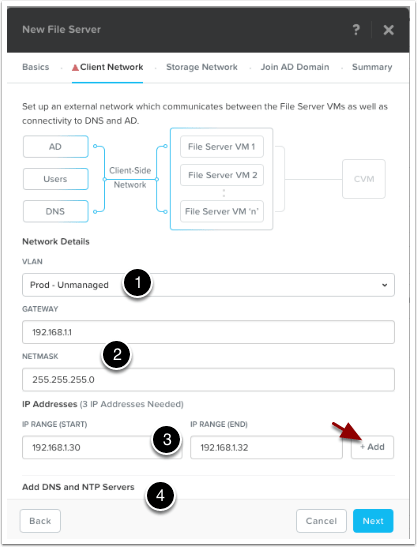
The Client Network screen will be shown outlining how the File Server VM’s will communicate out onto the network, to DNS, AD and to the end users.
(1) Pick the VLAN that you want this traffic on from the dropdown under Network Details, “VLAN“. In my example below, I only have 1 network which is pretty flat. If yours is like this, just choose your standard VLAN.
(2) Type in the network Gateway and Subnet Mask for the network you chose.
(3) Allocate a range of at least 3 IP Addresses, which will be used for the File Server VM’s client-side traffic. Once you fill in the range, click on the “+Add” button.
(4) The DNS and NTP settings should auto-populate (pulled from the cluster), but scroll down and verify the settings (Note: the NTP server should be the domain controller!)
Once completed, click on the “Next” button to continue.
Storage Network Configuration
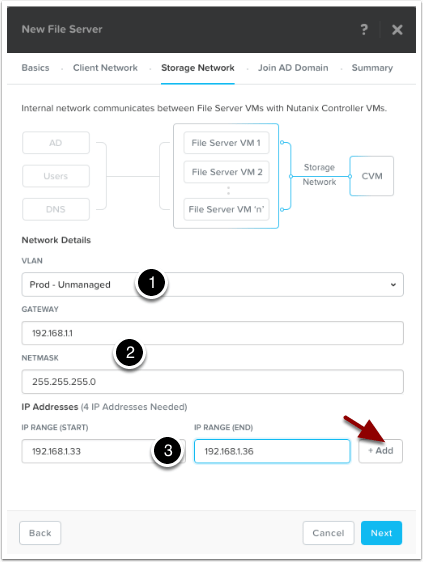
The Storage Network screen will be shown outlining how the File Server VM’s will communicate with the Nutanix Controller VM’s.
(1) Pick the VLAN that you want this traffic on from the dropdown under Network Details, “VLAN“. In my example below, I only have 1 network which is pretty flat. If yours is like this, just choose your standard VLAN.
(2) Type in the network Gateway and Subnet Mask for the network you chose.
(3) Allocate a range of at least 4 IP Addresses, which will be used for the File Server VM’s storage traffic. Once you fill in the range, click on the “+Add” button.
Once finished, click on the “Next” button to continue.
Joining Active Directory
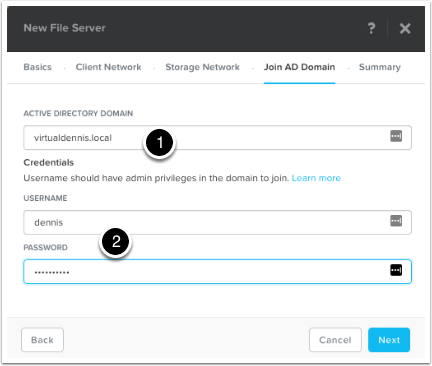
To join the file services to your active directory domain, type in your active directory domain name (1).
Type in a username and password for a user that will have admin level privileges to join the domain (2).
Once completed, click on the “Next” button to continue.
Summary and Protection Domain Setup
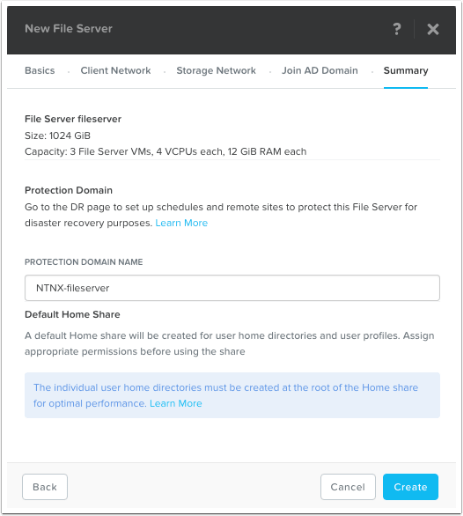
On the Summary screen, the wizard will show you how the file services will be configured. It will also ask you what you want to call the Protection Domain that will be created automatically. As noted, don’t forget to edit the Protection Domain (under the Menu –> Data Protection screen) to setup schedules and potential replication. For more information on setting up the Protection Domain, refer to the Acropolis File Services Guide located here: https://portal.nutanix.com/#/page/docs/details?targetId=Acropolis-File-Services-Guide-v20:acr-file-server-async-dr-c.html
As noted near the bottom of the screen, create user directories in the root of the home share for optimal performance. AFS creates a default home share for user home directory and user profiles. Individual user home directories must be created at the root of the Home share for optimal performance.
Click on the “Create” button to start the File Services deployment.
Monitoring File Services Deployment
You can monitor the File Services Deployment from the “Tasks” menu icon at the top of the screen.
Monitor for any Errors in Deployment
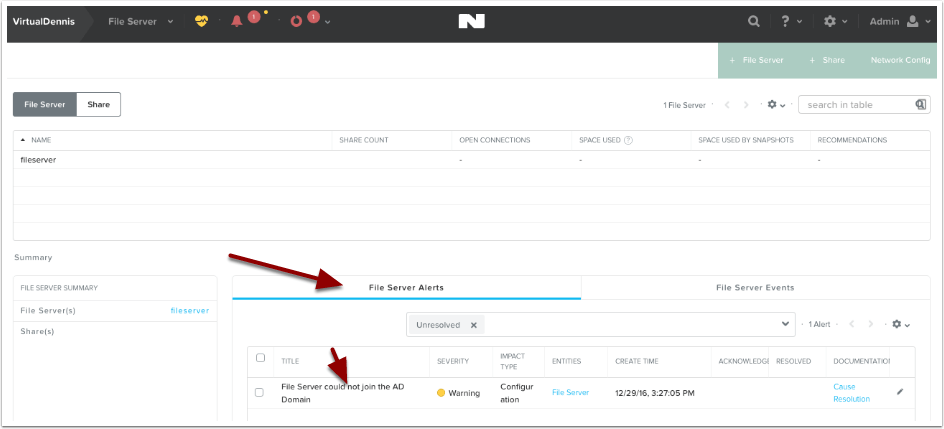
Prism will show you any errors that might show up during the deployment. In my example below, you’ll see that it couldn’t join the Active Directory Domain for some reason.
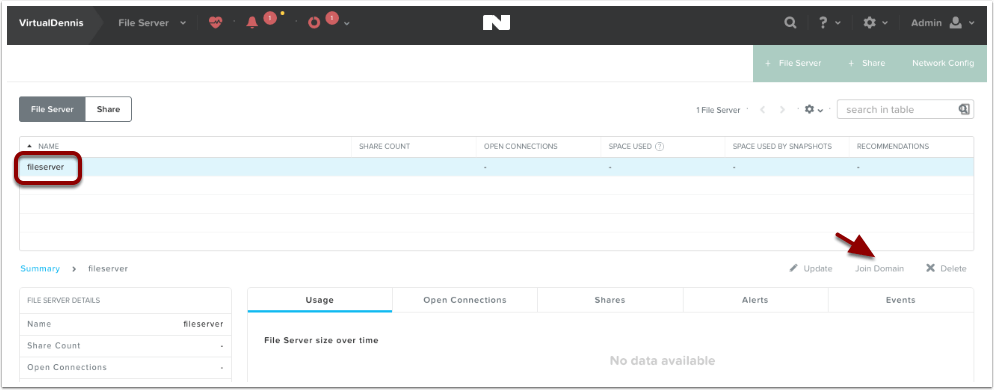
In my example, the file server couldn’t join the Active Directory domain and I needed to try again. By selecting the File Server in the list, an option will appear to “Join Domain”. I was able to try again and this time it worked. Note: Your domain needs to be at the functional level of Windows Server 2008 R2 or higher.
Successful Deployment
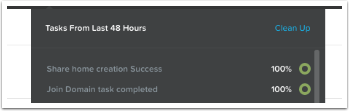
Once the deployment and join to the domain is completed, the tasks icon will show joining the domain completed successfully and a default “home” share was created.
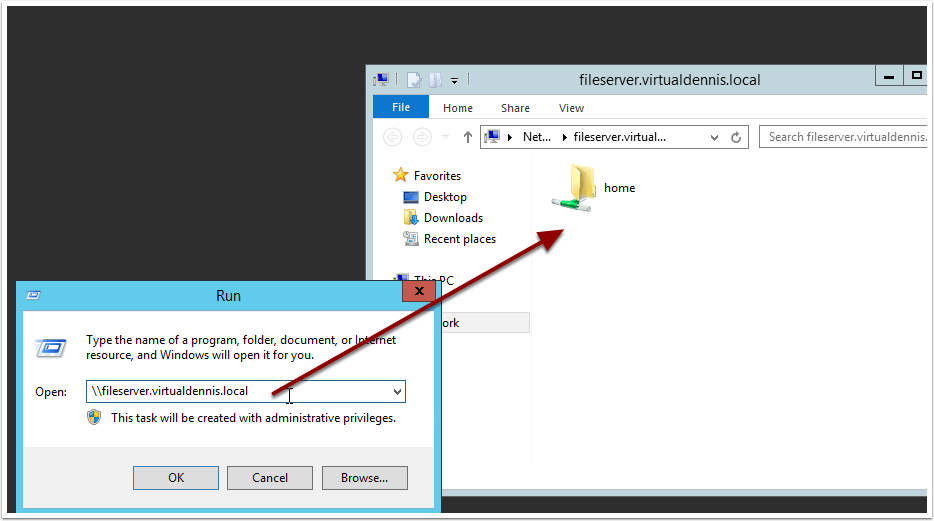
Once successfully deployed, you can now browse to the file server using the \\file-server-name path syntax, which you’ll see the default “home” share that has been created.
Quota Management
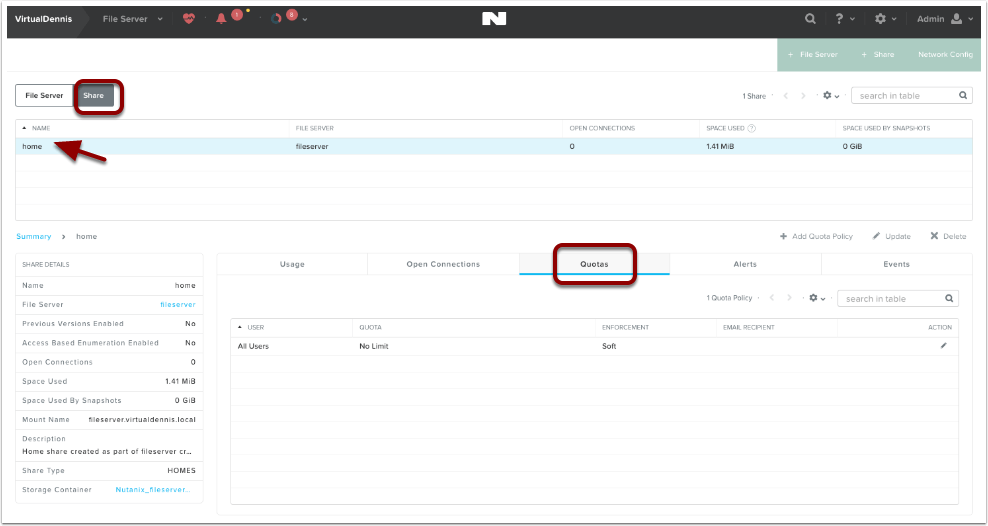
By default, all users accessing the “home” share do not have any quotas in place. If you would like to change this, select the “home” share from the “Share” submenu, and click on the “Quotas” tab. Here you can edit the existing default quota or add additional quota policies.
Enabling Windows Previous Versions
A Windows Previous version allows you to create and view manual or automatic snapshots of share (or volumes) when the share is in use. The share snapshots are read-only and point-in-time (snapshots taken at a certain time) copies. You can view or restore removed or overwritten files. This allows you to choose a share snapshot from the same file at different times during the file’s history. Snapshots can be scheduled for regular or frequent intervals to provide same-day protection against accidental deletions. WPV can be enabled for each object in a share.
WPV is disabled by default. You can enable WPV during or after share creation. Share updates are supported for both general-purpose and home shares.
To enable or disable Windows Previous Versions after share creation, do the following.
In the Prism web console, go to Home > File Server.
Click the Share tab in the view selector.
Select a share and click Update in the action links.
Select Enable Windows Previous Version (WPV) to check (enable) or clear (disable) the box.
Click Save. Be sure the WPV box is checked to enable.










 Crypto, IT & Cloud