Discover how cryptocurrency integrates with IT and cloud solutions for optimal business performance. Expert insights on blockchain technology implementation
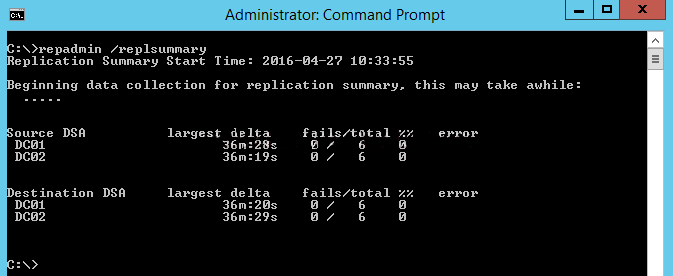
The “/replsummary” operation quickly summarizes replication state and relative health of a forest.
Step 2 – Check the inbound replication requests that are queued.
Repadmin /Queue
This command lists elements that are remaining in the replication queue. It displays inbound replication requests that the Domain Controller needs to issue in order to become consistent with its source replication partners.
Step 3 – Check the replication status
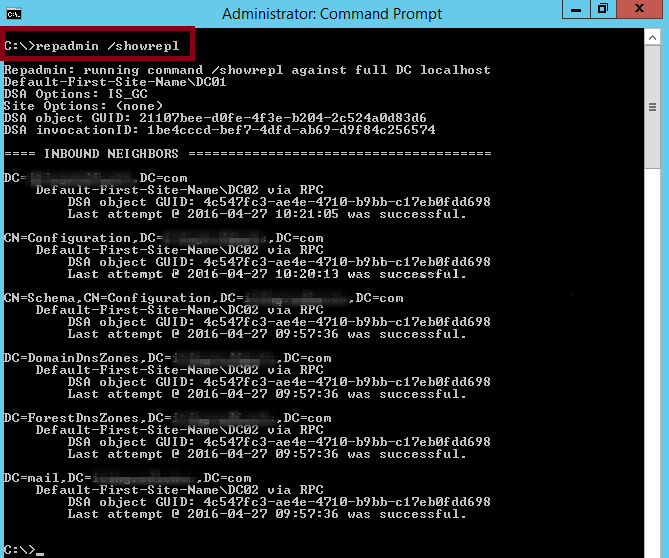
Repadmin /Showrepl
This command displays the replication status when the specified domain controller last attempted to implement an inbound replication of Active Directory partitions. It helps in figuring out the replication topology and replication failure.
Step 4 – Synchronize replication between replication partners
Repadmin /syncall
It ensures synchronization between replication partners
Step 5 – Force the KCC to recalculate the topology
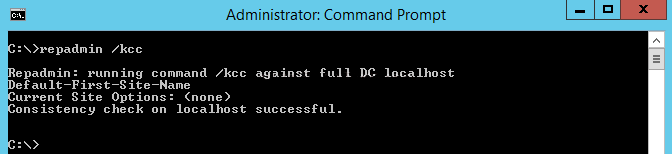
Repadmin /KCC
This command forces the KCC (Knowledge Consistency Checker) on targeted domain controller(s) to immediately recalculate its inbound replication topology. It checks and creates the connections between the Domain Controllers. By default KCC runs in the background every 15 minutes to check if a new connection has been established between DCs.
Step 6 – Force replication
Repadmin /replicate
This command forces the replication of the specified directory partition to the destination domain controller from the source DC.
Nutanix is a company that provides enterprise-level software solutions for building and managing private, public, and hybrid cloud computing environments. Their software is based on a hyperconverged infrastructure (HCI) architecture, which combines compute, storage, and networking resources into a single, integrated system. This can simplify IT operations and improve the performance and scalability of an organization’s IT infrastructure. Nutanix’s software is used by organizations of all sizes to support a wide range of use cases, including virtualization, data center consolidation, disaster recovery, and more.
Nutanix software is built on a distributed architecture that allows it to run on commodity hardware, which can help organizations to save on costs compared to traditional, proprietary systems. The software includes a range of features that help to automate and simplify IT operations, such as self-healing and self-balancing capabilities, which can help to improve the availability and performance of an organization’s IT infrastructure.
One of the main use cases for Nutanix software is virtualization, which allows organizations to run multiple virtual machines (VMs) on a single physical server. Nutanix software can support multiple hypervisors, including VMware vSphere, Microsoft Hyper-V, and Citrix Hypervisor, which allows organizations to choose the hypervisor that best meets their needs.
Another use case for Nutanix software is data center consolidation, which allows organizations to reduce the number of physical servers and data centers they need to maintain. Nutanix software can be used to create a shared infrastructure that can support multiple applications and workloads, which can help organizations to reduce their IT costs and improve their resource utilization.
Nutanix also has various disaster recovery solutions, such as Nutanix Site Recovery, which can help organizations to protect their critical applications and data in the event of a disaster. Nutanix Site Recovery can automatically replicate VMs and data to a secondary site, which can help organizations to quickly recover their IT infrastructure in the event of an outage.
Additionally, Nutanix has recently introduced new features to its platform such as Nutanix Era for Database management, Nutanix Calm for Multi-cloud and Kubernetes orchestration, Nutanix Files for File services and Nutanix Flow for Networking and Security, which further expand the use cases for Nutanix platform.
Setting up a new Nutanix host involves several steps, including preparing the hardware, installing the Nutanix software, and configuring the network settings. Here is a general outline of the process:
Prepare the hardware by installing the necessary components, such as the CPU, memory, and storage devices.
Download the Nutanix software image and create a bootable USB drive.
Connect to the host using a monitor and keyboard, and boot the host using the USB drive.
Follow the prompts to install the Nutanix software. This process may take several minutes to complete.
Once the installation is complete, you will be prompted to configure the network settings for the host.
Log in to the Nutanix web console using the IP address of the host and the default credentials.
Configure the network settings and other basic settings, like the time zone, host name, and cluster settings.
After the host is configured, you can add it to an existing cluster or create a new cluster.
Once cluster is created, you can add more nodes to the cluster, and configure the storage and network settings for the cluster.
The host is now ready to use, you can start creating virtual machines and deploying applications on the cluster.
Note: it is important to consult Nutanix documentation and best practices as this is a high level explanation and may not cover all the details.
vSphere Distributed Resource Scheduler (DRS) is a feature of vSphere that automatically balances resources among the hosts in a cluster. To configure DRS, you need to do the following:
Create a cluster: In the vSphere Web Client, navigate to the datacenter or folder that contains the hosts you want to include in the cluster. Right-click the datacenter or folder and select “New Cluster.”
Enable DRS: In the “Cluster Settings” section, select the “Edit” button. In the “DRS” tab, select “Enabled” and set the “Automation level” to “Fully Automated.”
Configure DRS rules: In the “DRS Rules” section, you can configure rules to ensure certain virtual machines are placed on specific hosts or in specific resource pools.
Configure DRS affinity/anti-affinity rules: In the “DRS Rules” section, you can configure Affinity/Anti-affinity rules to ensure certain virtual machines are placed on specific hosts or in specific resource pools.
Configure DRS Advanced options: In the “DRS Advanced options” section, you can configure the migration threshold, host isolation response and more.
Apply the configuration: Click OK to apply the configuration and close the dialog box.
Keep in mind that you will need the appropriate permissions to configure DRS, and that you should test your configuration before deploying it in a production environment.
Beginning with macOS Catalina 10.15, Apple introduced new security controls to better protect your computer. For example, apps are now required to ask your permission before accessing your webcam, microphone, or recording/sharing your screen. This has a direct impact on Microsoft Teams as all of these settings must be allowed to use MS Teams at its full capacity.
To configure your security settings for MS Teams, please do the following:
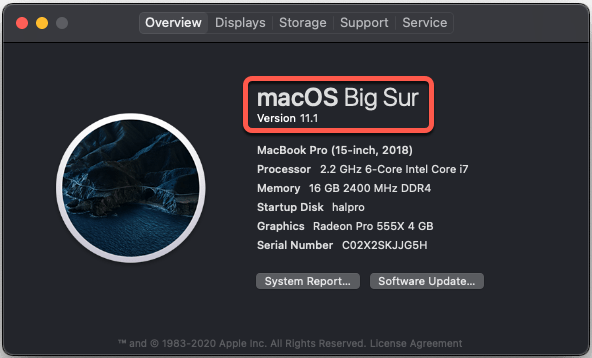
1. Check your macOS version – the following steps are only available in macOS 10.15 Catalina and macOS 11 Big Sur. To check your macOS version click the menu in the top-left corner, then select “About This Mac“. If you’re running macOS 10.15.x or macOS 11+, continue on:
2. Click the menu in the top-left corner, then select “System Preferences…“. From the window that appears, select “Security & Privacy”
3. Click the padlock in the lower-left corner of the window. Enter your computer username and password – this will allow you to make the necessary changes.
4. You’ll need to allow MS Teams to access your Camera, Microphone, Accessibility, Files and Folders, and Screen Recording. To do this, select the item from the left column, scroll through the list of applications, and make sure that Teams is checked.
5. Repeat this process for:
* Camera * Microphone * Accessibility * Screen Recording
6. Quit and relaunch Microsoft Teams for these changes to take effect. Troubleshooting
This article will show you the steps involved to setup Acropolis File Services (AFS) on a cluster running AOS 5.0.
Acropolis File Services (AFS) uses a scale-out architecture that provides Server Message Block (SMB) file shares to Windows clients for home directory and user profiles. Acropolis File Services consist of three or more file server VMs (FSVM). There is one file server maximum per cluster image. A set of file server VMs is also known as a Acropolis File Services cluster. Multiple file server clusters can be created on a Nutanix cluster.
With the AOS 5.0 release, Acropolis File Services can be used when running ESXi or AHV as the hypervisor on your Nutanix cluster.
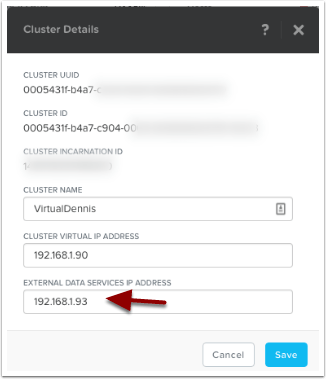
One of the prerequisites for AFS is to setup a Cluster Data Services IP. We can set that up by clicking on the cluster name in Prism. In the sample below, I’m clicking on the cluster name.
Setup the External Data Services IP Address by typing in a new unused IP address into the field as shown below. Then select the “Save” button.
File Services
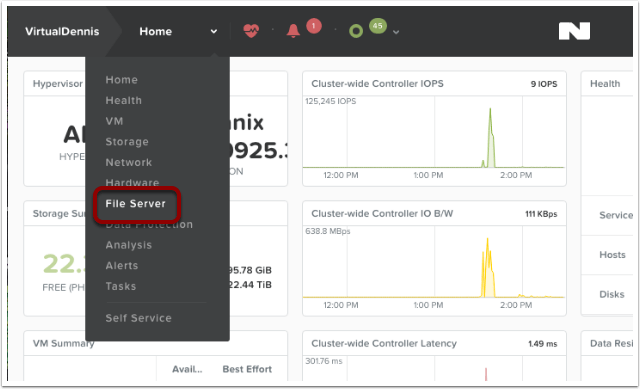
Now we can start the configuration of File Services by selecting the main menu in Prism, then choose “File Server” from the dropdown.
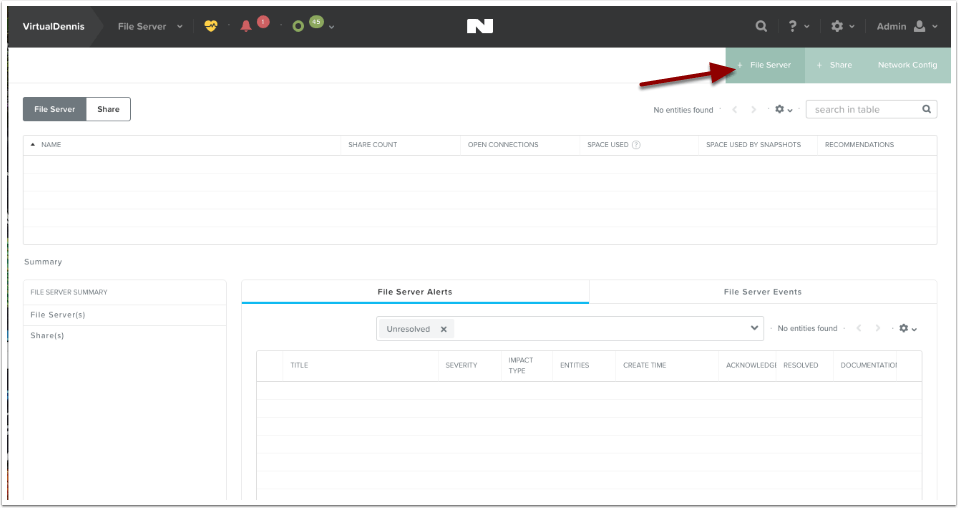
To begin creating a new file server, click on the button labeled “+ File Server” in the upper right-hand side of the screen.
File Services Pre-Check
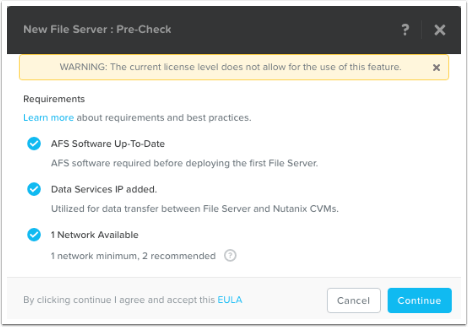
The system will now show you a few “pre-checks” that are performed to make sure the requirements are met. If any of these items do not have a blue check-mark next to them, go ahead and resolve the item then try it again. To continue, click on the “Continue” button.
Note: The error “WARNING: The current license level does not allow for the use of this feature.” is only a Warning. You can still proceed to use the feature (and test it out), however please contact your Nutanix Account team to resolve.
File Server Basics
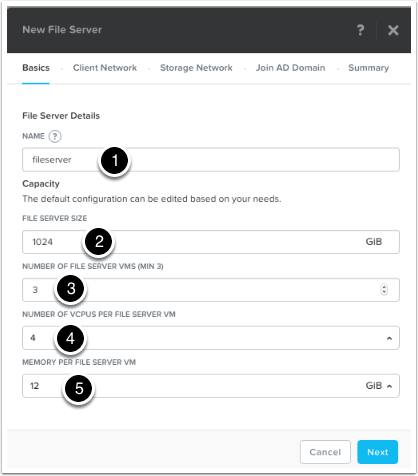
Next, fill in the File Server details:
(1) Name: This is the name of the File Server that will be used when browsing to the file share.
(2) File Server Size: This is the amount of storage reserved for File Services (from the Nutanix Storage Pool). Currently, a minimum of 1 TB is required.
(3) Number of File Servers VMs: This is the number of file servers that will be deployed in the cluster. A minimum of 3 VM’s is needed to make a distributed file server. Additional VM’s can be added later through the “Scale Up” wizard.
(4) Number of vCPUs per File Server VM: This is the amount of vCPU’s assigned to each File Server VM.*
(5) Memory Per File Server VM: This is the amount of RAM assigned to each File Server VM.*
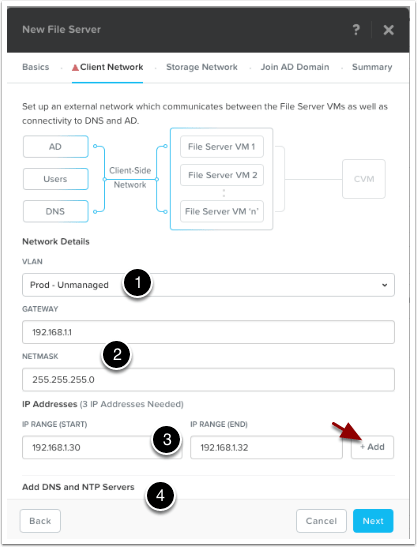
The Client Network screen will be shown outlining how the File Server VM’s will communicate out onto the network, to DNS, AD and to the end users.
(1) Pick the VLAN that you want this traffic on from the dropdown under Network Details, “VLAN“. In my example below, I only have 1 network which is pretty flat. If yours is like this, just choose your standard VLAN.
(2) Type in the network Gateway and Subnet Mask for the network you chose.
(3) Allocate a range of at least 3 IP Addresses, which will be used for the File Server VM’s client-side traffic. Once you fill in the range, click on the “+Add” button.
(4) The DNS and NTP settings should auto-populate (pulled from the cluster), but scroll down and verify the settings (Note: the NTP server should be the domain controller!)
Once completed, click on the “Next” button to continue.
Storage Network Configuration
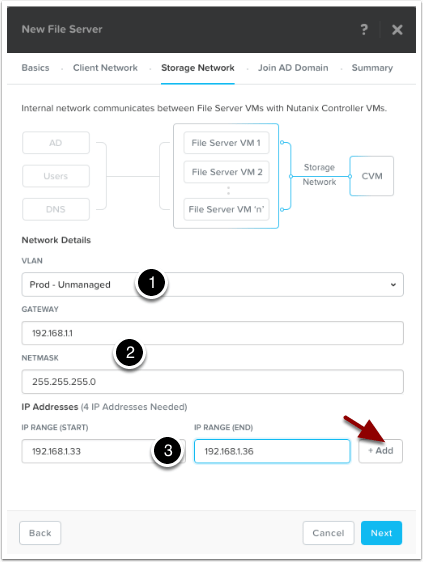
The Storage Network screen will be shown outlining how the File Server VM’s will communicate with the Nutanix Controller VM’s.
(1) Pick the VLAN that you want this traffic on from the dropdown under Network Details, “VLAN“. In my example below, I only have 1 network which is pretty flat. If yours is like this, just choose your standard VLAN.
(2) Type in the network Gateway and Subnet Mask for the network you chose.
(3) Allocate a range of at least 4 IP Addresses, which will be used for the File Server VM’s storage traffic. Once you fill in the range, click on the “+Add” button.
Once finished, click on the “Next” button to continue.
Joining Active Directory
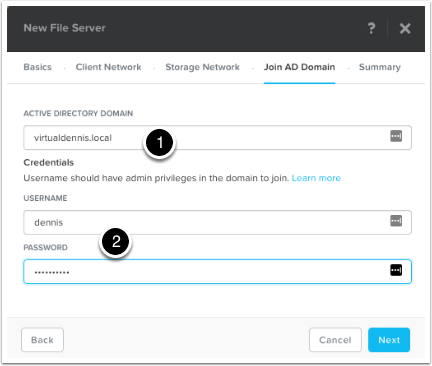
To join the file services to your active directory domain, type in your active directory domain name (1).
Type in a username and password for a user that will have admin level privileges to join the domain (2).
Once completed, click on the “Next” button to continue.
Summary and Protection Domain Setup
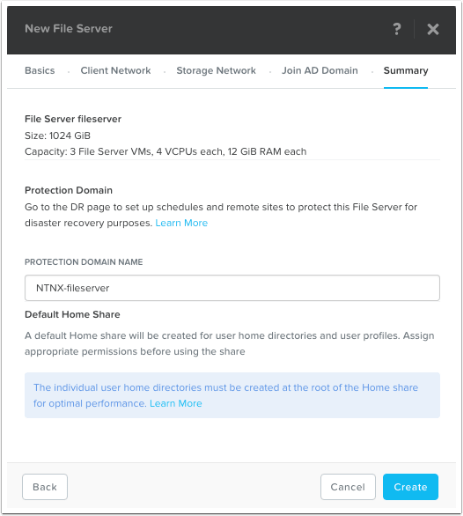
On the Summary screen, the wizard will show you how the file services will be configured. It will also ask you what you want to call the Protection Domain that will be created automatically. As noted, don’t forget to edit the Protection Domain (under the Menu –> Data Protection screen) to setup schedules and potential replication. For more information on setting up the Protection Domain, refer to the Acropolis File Services Guide located here: https://portal.nutanix.com/#/page/docs/details?targetId=Acropolis-File-Services-Guide-v20:acr-file-server-async-dr-c.html
As noted near the bottom of the screen, create user directories in the root of the home share for optimal performance. AFS creates a default home share for user home directory and user profiles. Individual user home directories must be created at the root of the Home share for optimal performance.
Click on the “Create” button to start the File Services deployment.
Monitoring File Services Deployment
You can monitor the File Services Deployment from the “Tasks” menu icon at the top of the screen.
Monitor for any Errors in Deployment
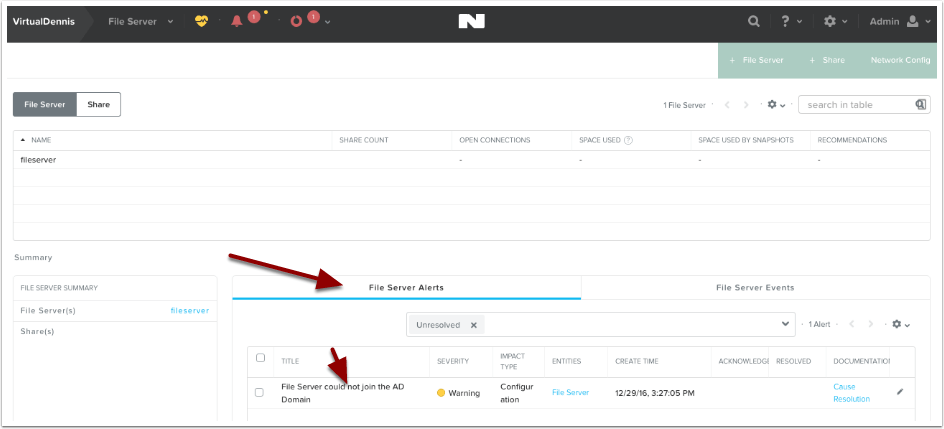
Prism will show you any errors that might show up during the deployment. In my example below, you’ll see that it couldn’t join the Active Directory Domain for some reason.
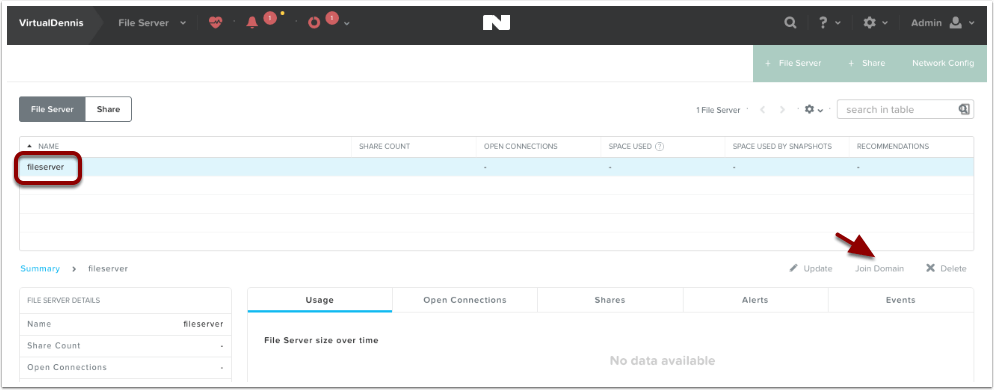
In my example, the file server couldn’t join the Active Directory domain and I needed to try again. By selecting the File Server in the list, an option will appear to “Join Domain”. I was able to try again and this time it worked. Note: Your domain needs to be at the functional level of Windows Server 2008 R2 or higher.
Successful Deployment
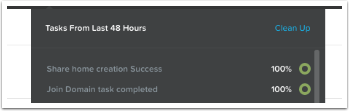
Once the deployment and join to the domain is completed, the tasks icon will show joining the domain completed successfully and a default “home” share was created.
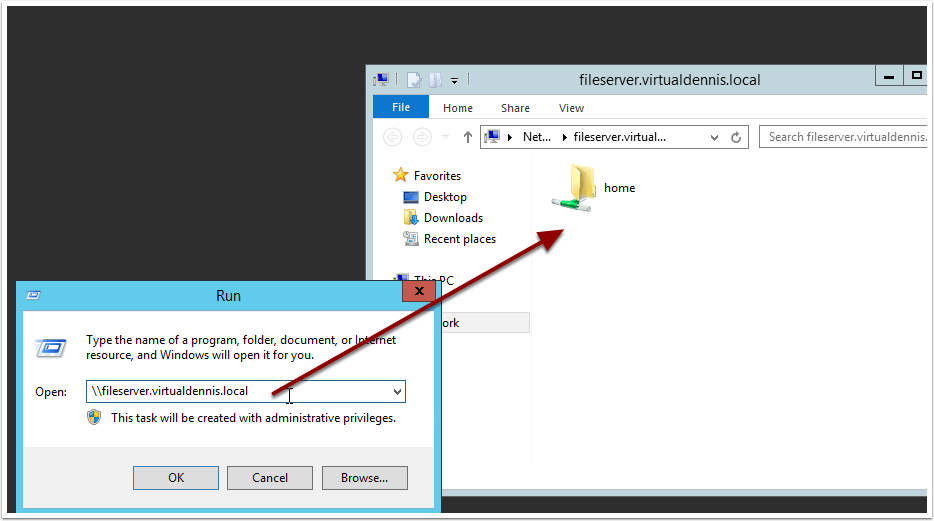
Once successfully deployed, you can now browse to the file server using the \\file-server-name path syntax, which you’ll see the default “home” share that has been created.
Quota Management
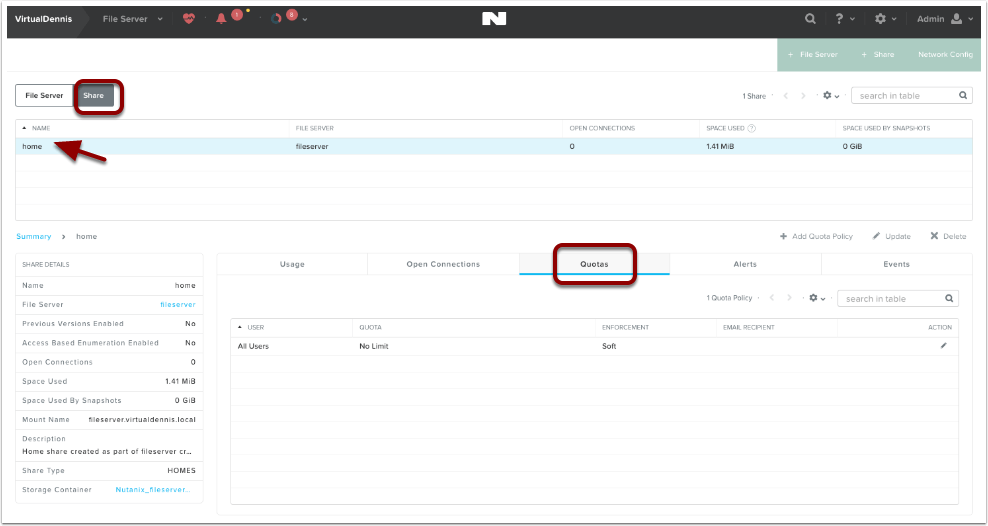
By default, all users accessing the “home” share do not have any quotas in place. If you would like to change this, select the “home” share from the “Share” submenu, and click on the “Quotas” tab. Here you can edit the existing default quota or add additional quota policies.
Enabling Windows Previous Versions
A Windows Previous version allows you to create and view manual or automatic snapshots of share (or volumes) when the share is in use. The share snapshots are read-only and point-in-time (snapshots taken at a certain time) copies. You can view or restore removed or overwritten files. This allows you to choose a share snapshot from the same file at different times during the file’s history. Snapshots can be scheduled for regular or frequent intervals to provide same-day protection against accidental deletions. WPV can be enabled for each object in a share.
WPV is disabled by default. You can enable WPV during or after share creation. Share updates are supported for both general-purpose and home shares.
To enable or disable Windows Previous Versions after share creation, do the following.
In the Prism web console, go to Home > File Server.
Click the Share tab in the view selector.
Select a share and click Update in the action links.
Select Enable Windows Previous Version (WPV) to check (enable) or clear (disable) the box.
Click Save. Be sure the WPV box is checked to enable.
Purpose: This article provides the default location of the most common Site Recovery Manager (SRM) log files.
Resolution: VMware Site Recovery Manager server logs are located on the server where SRM is installed, in the All Users profile:
For SRM 4.x and 5.x:
On Windows XP and Server 2003:
%ALLUSERSPROFILE%\Application Data\VMware\VMware vCenter Site Recovery Manager\Logs\
On Windows Server 2008 and 2012:
\ProgramData\VMware\VMware vCenter Site Recovery Manager\Logs\
On Windows Vista, 7:
%ALLUSERSPROFILE%\VMware\VMware vCenter Site Recovery Manager\Logs\
For SRM 1.0:
On Windows 2000, XP and 2003:
%ALLUSERSPROFILE%\Application Data\VMware\VMware Site Recovery Manager\Logs\ Installation logs for VMware Site Recovery Manager are located in the Temp directory for the user performing the installation:
Storage Replication Adapters (SRAs) write logs in locations specific to the SRA type and vendor. Contact the SRA vendor’s documentation for more information. Common locations include:
Note: The logs can also be gathered from the GUI of the vSphere Client if connection to the SRM plug-in is still available. The Gather Logs link from the SRM Site window imports the logs from the preceding location(s).