
This article will show you the steps involved to setup Acropolis File Services (AFS) on a cluster running AOS 5.0.
Acropolis File Services (AFS) uses a scale-out architecture that provides Server Message Block (SMB) file shares to Windows clients for home directory and user profiles. Acropolis File Services consist of three or more file server VMs (FSVM). There is one file server maximum per cluster image. A set of file server VMs is also known as a Acropolis File Services cluster. Multiple file server clusters can be created on a Nutanix cluster.
With the AOS 5.0 release, Acropolis File Services can be used when running ESXi or AHV as the hypervisor on your Nutanix cluster.
A great document to refer to is the Acropolis File Services Guide, which can be found on the Nutanix portal here: https://portal.nutanix.com/#/page/docs/details?targetId=Acropolis-File-Services-Guide-v20:Acropolis-File-Services-Guide-v20
Setup the Cluster Data Services IP
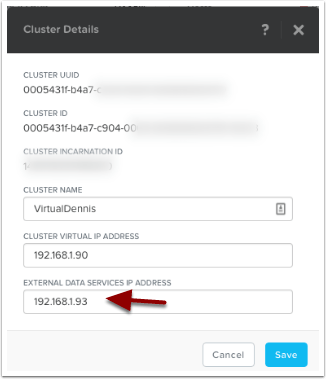
One of the prerequisites for AFS is to setup a Cluster Data Services IP. We can set that up by clicking on the cluster name in Prism. In the sample below, I’m clicking on the cluster name.

Setup the External Data Services IP Address by typing in a new unused IP address into the field as shown below. Then select the “Save” button.
File Services
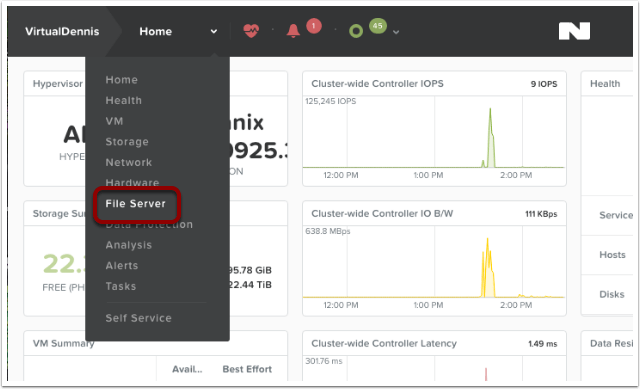
Now we can start the configuration of File Services by selecting the main menu in Prism, then choose “File Server” from the dropdown.
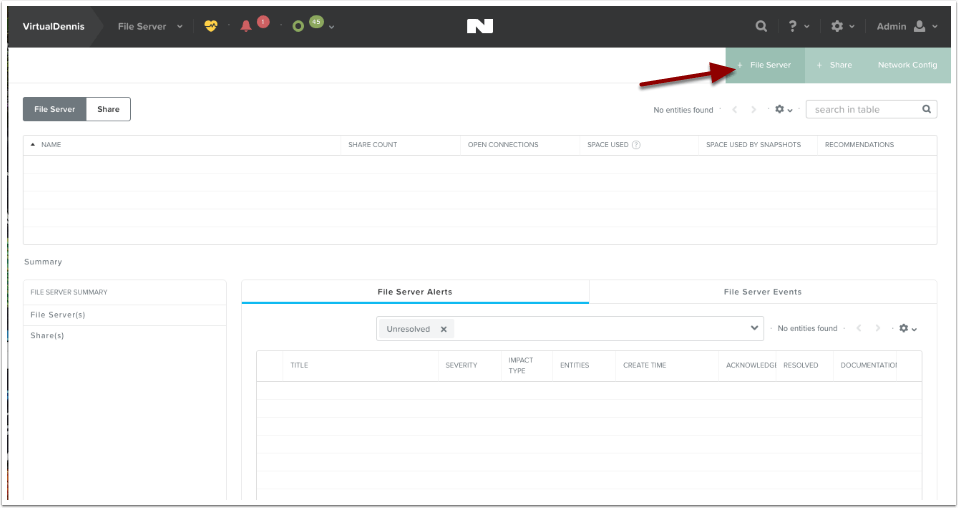
To begin creating a new file server, click on the button labeled “+ File Server” in the upper right-hand side of the screen.
File Services Pre-Check
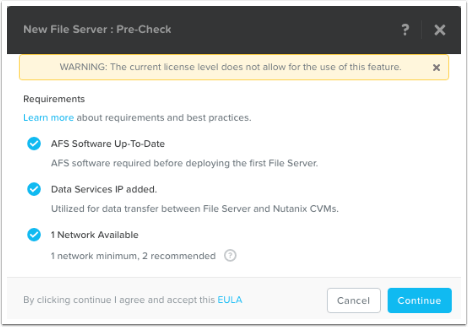
The system will now show you a few “pre-checks” that are performed to make sure the requirements are met. If any of these items do not have a blue check-mark next to them, go ahead and resolve the item then try it again. To continue, click on the “Continue” button.
Note: The error “WARNING: The current license level does not allow for the use of this feature.” is only a Warning. You can still proceed to use the feature (and test it out), however please contact your Nutanix Account team to resolve.
File Server Basics
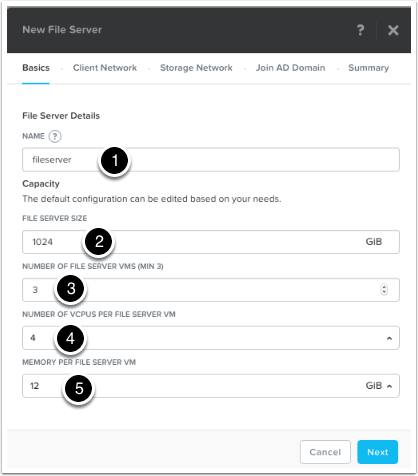
Next, fill in the File Server details:
(1) Name: This is the name of the File Server that will be used when browsing to the file share.
(2) File Server Size: This is the amount of storage reserved for File Services (from the Nutanix Storage Pool). Currently, a minimum of 1 TB is required.
(3) Number of File Servers VMs: This is the number of file servers that will be deployed in the cluster. A minimum of 3 VM’s is needed to make a distributed file server. Additional VM’s can be added later through the “Scale Up” wizard.
(4) Number of vCPUs per File Server VM: This is the amount of vCPU’s assigned to each File Server VM.*
(5) Memory Per File Server VM: This is the amount of RAM assigned to each File Server VM.*
* For sizing the amount of vCPU’s and RAM assigned to each File Server VM, refer to this section of the Acropolis File Services Guide: https://portal.nutanix.com/#/page/docs/details?targetId=Acropolis-File-Services-Guide-v20:acr-file-server-system-limits-r.html
Press “Next” to proceed.
Client Network Configuration
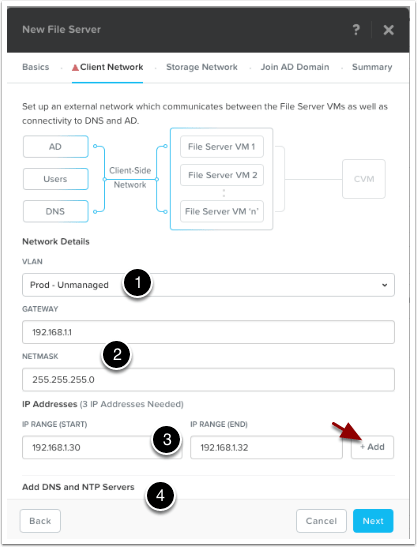
The Client Network screen will be shown outlining how the File Server VM’s will communicate out onto the network, to DNS, AD and to the end users.
(1) Pick the VLAN that you want this traffic on from the dropdown under Network Details, “VLAN“. In my example below, I only have 1 network which is pretty flat. If yours is like this, just choose your standard VLAN.
(2) Type in the network Gateway and Subnet Mask for the network you chose.
(3) Allocate a range of at least 3 IP Addresses, which will be used for the File Server VM’s client-side traffic. Once you fill in the range, click on the “+Add” button.
(4) The DNS and NTP settings should auto-populate (pulled from the cluster), but scroll down and verify the settings (Note: the NTP server should be the domain controller!)
Once completed, click on the “Next” button to continue.
Storage Network Configuration
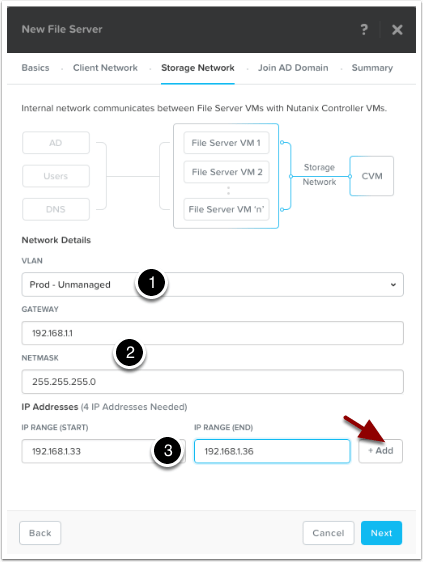
The Storage Network screen will be shown outlining how the File Server VM’s will communicate with the Nutanix Controller VM’s.
(1) Pick the VLAN that you want this traffic on from the dropdown under Network Details, “VLAN“. In my example below, I only have 1 network which is pretty flat. If yours is like this, just choose your standard VLAN.
(2) Type in the network Gateway and Subnet Mask for the network you chose.
(3) Allocate a range of at least 4 IP Addresses, which will be used for the File Server VM’s storage traffic. Once you fill in the range, click on the “+Add” button.
Once finished, click on the “Next” button to continue.
Joining Active Directory
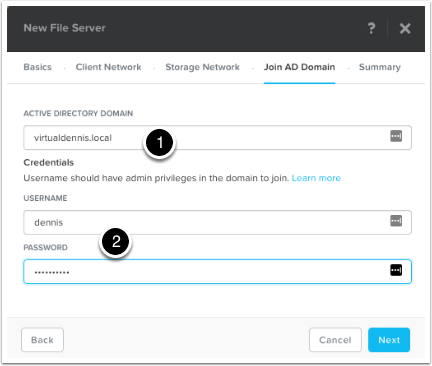
To join the file services to your active directory domain, type in your active directory domain name (1).
Type in a username and password for a user that will have admin level privileges to join the domain (2).
Once completed, click on the “Next” button to continue.
Summary and Protection Domain Setup
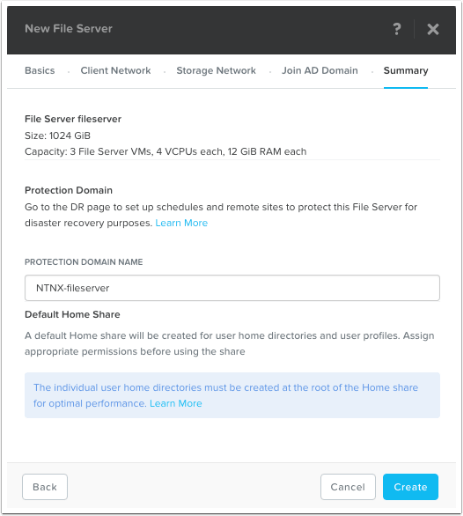
On the Summary screen, the wizard will show you how the file services will be configured. It will also ask you what you want to call the Protection Domain that will be created automatically. As noted, don’t forget to edit the Protection Domain (under the Menu –> Data Protection screen) to setup schedules and potential replication. For more information on setting up the Protection Domain, refer to the Acropolis File Services Guide located here: https://portal.nutanix.com/#/page/docs/details?targetId=Acropolis-File-Services-Guide-v20:acr-file-server-async-dr-c.html
As noted near the bottom of the screen, create user directories in the root of the home share for optimal performance. AFS creates a default home share for user home directory and user profiles. Individual user home directories must be created at the root of the Home share for optimal performance.
Click on the “Create” button to start the File Services deployment.
Monitoring File Services Deployment
You can monitor the File Services Deployment from the “Tasks” menu icon at the top of the screen.

Monitor for any Errors in Deployment
Prism will show you any errors that might show up during the deployment. In my example below, you’ll see that it couldn’t join the Active Directory Domain for some reason.
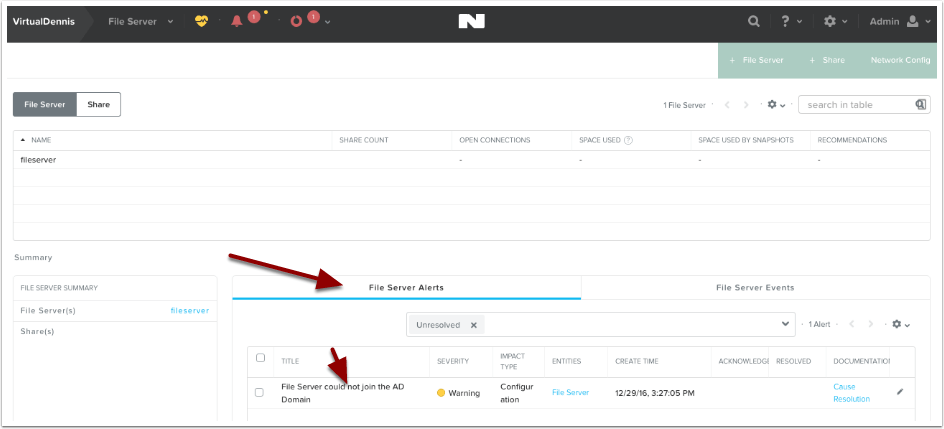
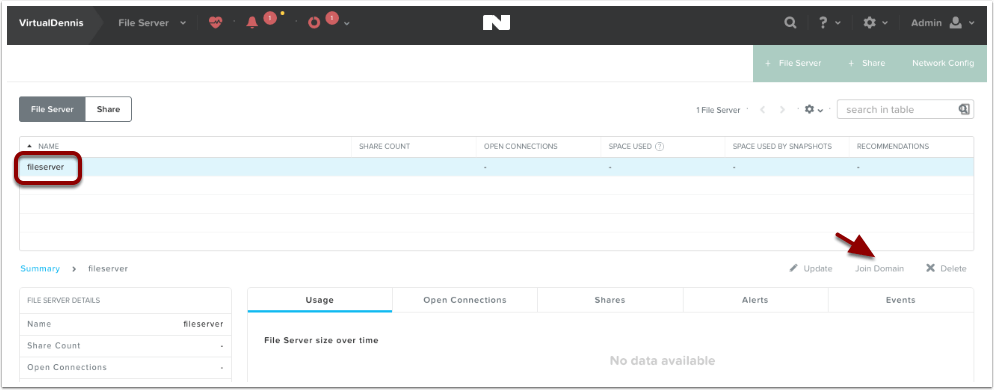
In my example, the file server couldn’t join the Active Directory domain and I needed to try again. By selecting the File Server in the list, an option will appear to “Join Domain”. I was able to try again and this time it worked. Note: Your domain needs to be at the functional level of Windows Server 2008 R2 or higher.
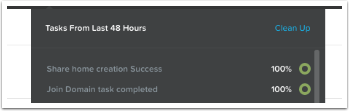
Successful Deployment
Once the deployment and join to the domain is completed, the tasks icon will show joining the domain completed successfully and a default “home” share was created.
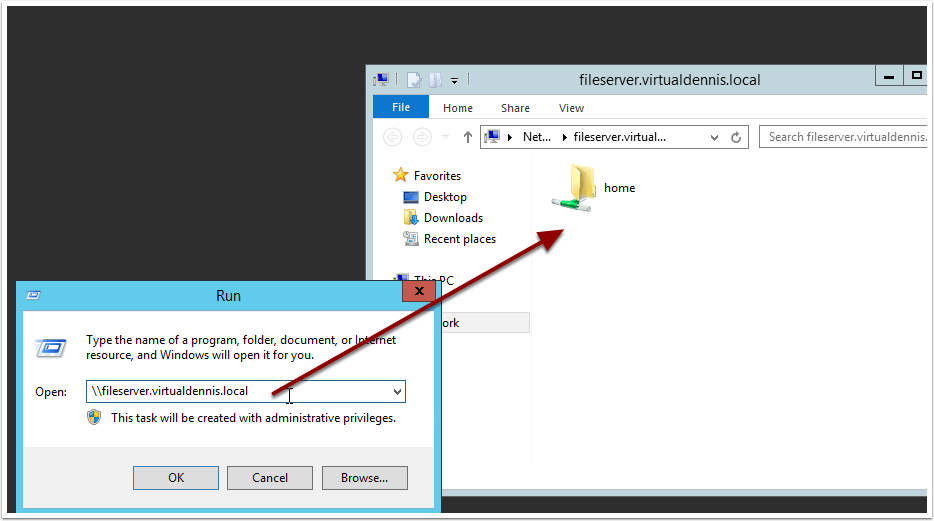
Once successfully deployed, you can now browse to the file server using the \\file-server-name path syntax, which you’ll see the default “home” share that has been created.
Quota Management
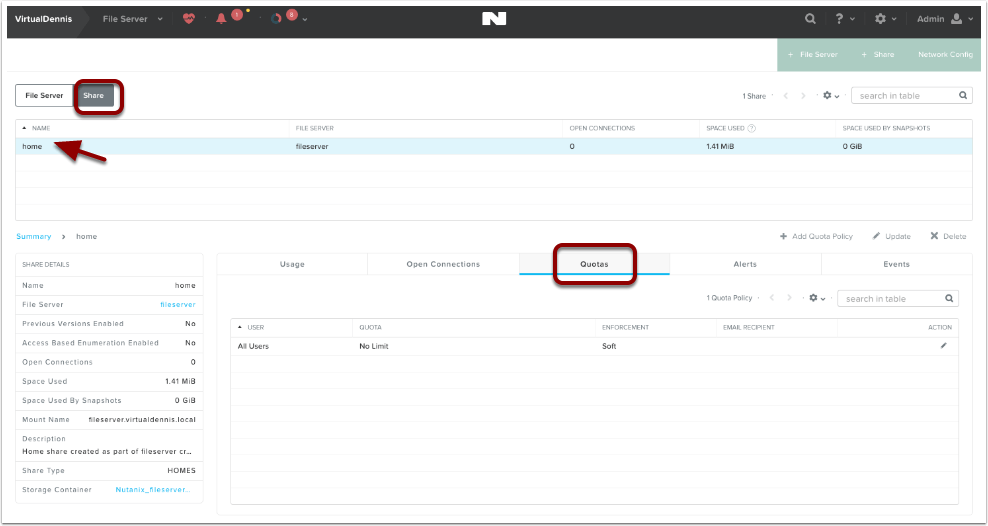
By default, all users accessing the “home” share do not have any quotas in place. If you would like to change this, select the “home” share from the “Share” submenu, and click on the “Quotas” tab. Here you can edit the existing default quota or add additional quota policies.
Enabling Windows Previous Versions
A Windows Previous version allows you to create and view manual or automatic snapshots of share (or volumes) when the share is in use. The share snapshots are read-only and point-in-time (snapshots taken at a certain time) copies. You can view or restore removed or overwritten files. This allows you to choose a share snapshot from the same file at different times during the file’s history. Snapshots can be scheduled for regular or frequent intervals to provide same-day protection against accidental deletions. WPV can be enabled for each object in a share.
WPV is disabled by default. You can enable WPV during or after share creation. Share updates are supported for both general-purpose and home shares.
To enable or disable Windows Previous Versions after share creation, do the following.
- In the Prism web console, go to Home > File Server.
- Click the Share tab in the view selector.
- Select a share and click Update in the action links.
- Select Enable Windows Previous Version (WPV) to check (enable) or clear (disable) the box.
- Click Save. Be sure the WPV box is checked to enable.