Published by everythingcryptoitclouds.com | September 11, 2025
In a groundbreaking development that promises to reshape the cryptocurrency privacy landscape, the Litecoin Foundation and AmericanFortress have announced their partnership to launch the world’s most private Litecoin wallet. This collaboration, unveiled on September 8, 2025, represents a paradigm shift in how we approach cryptocurrency security, privacy, and user experience, addressing the critical $1.2 billion annual loss to crypto phishing scams while maintaining full regulatory compliance [1].
The partnership between these two industry leaders comes at a pivotal moment when cryptocurrency adoption is accelerating, but security vulnerabilities continue to plague the ecosystem. With phishing attacks reaching unprecedented levels and traditional wallet addresses creating confusion and risk for users, the AmericanFortress Litecoin Wallet introduces revolutionary “Send-to-Name” technology that fundamentally eliminates the most common attack vectors while preserving the privacy and decentralization principles that define cryptocurrency [2].
This isn’t merely another wallet launch—it’s the introduction of a comprehensive privacy infrastructure that positions Litecoin at the forefront of the privacy-focused cryptocurrency movement. By integrating MimbleWimble Extension Blocks (MWEB), FortressNames™ technology, and advanced cryptographic protocols, this wallet delivers what David Schwartz, Project Director at the Litecoin Foundation, describes as “a milestone for privacy infrastructure, not just for Litecoin, but for the entire crypto ecosystem” [3].
The significance of this partnership extends beyond technical innovation to address fundamental challenges facing cryptocurrency adoption. Traditional wallet addresses—those long, complex strings of characters that users must copy and paste—have become the primary vector for phishing attacks and user error. The AmericanFortress solution replaces these vulnerable address strings with human-readable names and auto-generated stealth addresses, creating a user experience that rivals traditional banking apps while delivering unprecedented privacy protection.
The Privacy Crisis in Cryptocurrency: Understanding the $1.2 Billion Problem
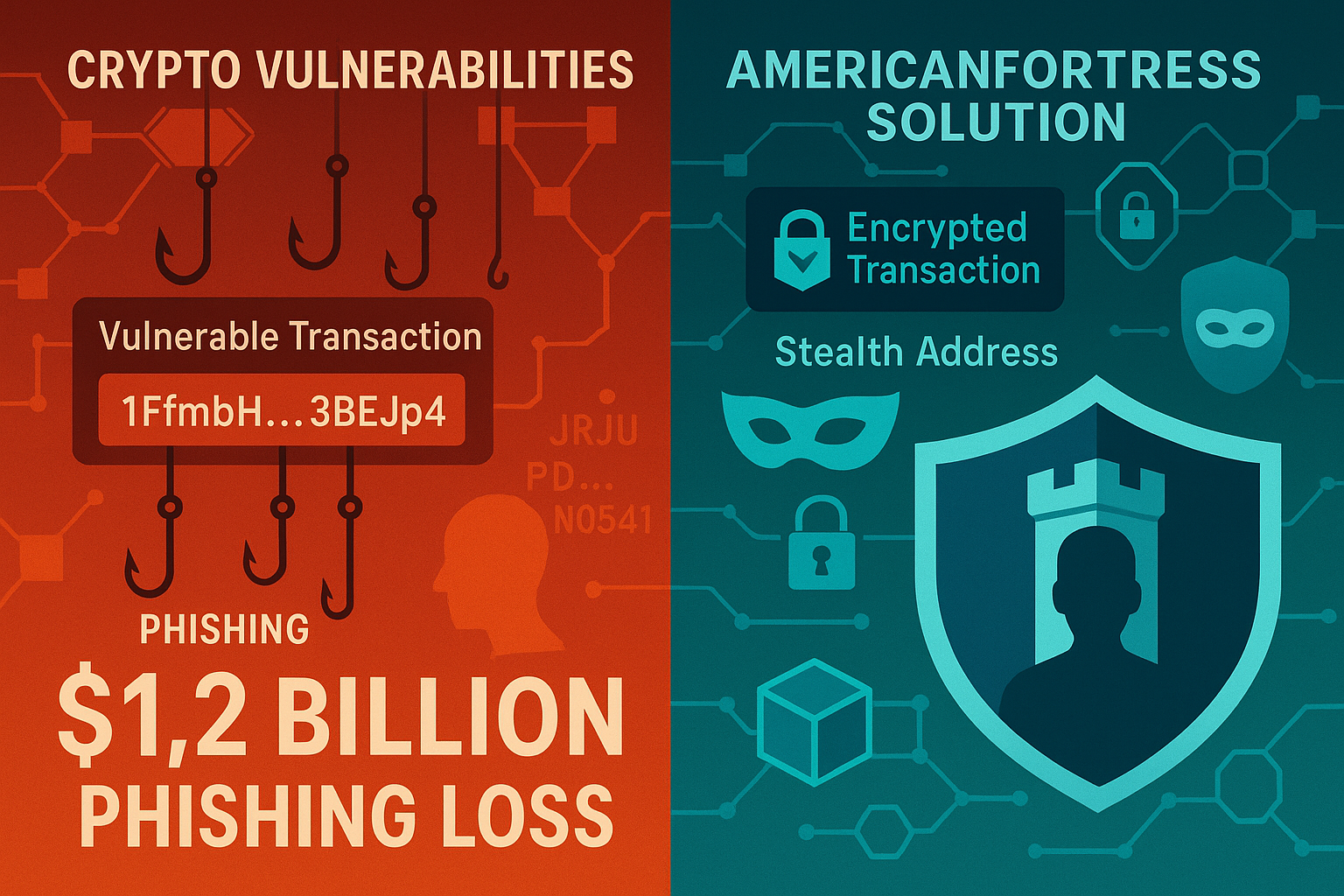
The cryptocurrency industry faces a privacy and security crisis that threatens to undermine mainstream adoption. According to recent data, $1.2 billion was lost to crypto phishing scams in the United States alone during 2024, with the vast majority of these attacks exploiting the complexity and vulnerability of traditional wallet address systems [4]. This staggering figure represents not just financial losses, but a fundamental failure of current cryptocurrency infrastructure to protect users from increasingly sophisticated attack vectors.
The root of this problem lies in the inherent design of cryptocurrency addresses. Traditional wallet addresses are long, alphanumeric strings that are virtually impossible for humans to memorize or verify accurately. When users copy and paste these addresses, they create multiple opportunities for attackers to intercept and modify the destination, redirecting funds to malicious wallets. This vulnerability has been exploited through various methods, including clipboard malware, fake websites, and social engineering attacks that trick users into sending funds to incorrect addresses.
The psychological impact of these losses extends far beyond the immediate financial damage. Each successful phishing attack erodes public confidence in cryptocurrency systems and creates barriers to adoption among mainstream users who view the technology as inherently risky and complex. This perception problem has significant implications for the long-term growth and legitimacy of the cryptocurrency ecosystem, particularly as institutional investors and regulatory bodies evaluate the maturity and security of digital asset infrastructure.
Traditional privacy solutions in the cryptocurrency space have often required users to make difficult trade-offs between security, usability, and regulatory compliance. Privacy coins like Monero and Zcash offer strong anonymity features but face increasing regulatory scrutiny and exchange delistings. Layer-2 privacy solutions often require technical expertise to implement correctly and may not provide comprehensive protection across all transaction types. The result has been a fragmented privacy landscape where users must choose between convenience and security, often leaving them vulnerable to attacks or regulatory complications.
The AmericanFortress and Litecoin partnership addresses these challenges through a fundamentally different approach that prioritizes privacy by design rather than privacy as an add-on feature. By integrating privacy protections at the protocol level and combining them with intuitive user experience improvements, this solution eliminates the traditional trade-offs that have hindered privacy adoption in the cryptocurrency space.
Revolutionary Send-to-Name Technology: Eliminating Phishing at the Source
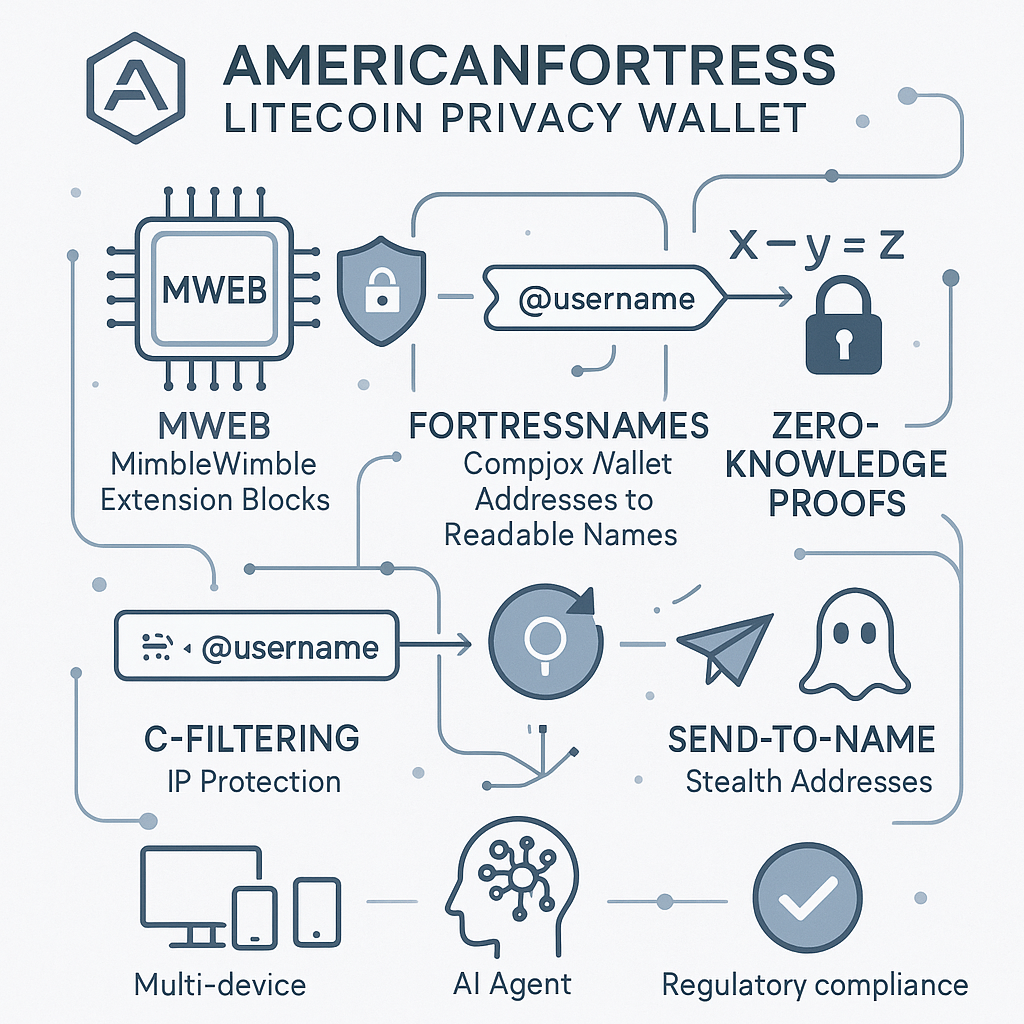
The cornerstone of the AmericanFortress Litecoin Wallet is its revolutionary Send-to-Name technology, which represents a fundamental reimagining of how cryptocurrency transactions are initiated and secured. This system replaces the vulnerable copy-paste address model with human-readable names and automatically generated stealth addresses that are unique to each sender-receiver pair, creating a transaction environment that is both more secure and more intuitive than traditional cryptocurrency wallets [5].
The technical implementation of Send-to-Name technology involves sophisticated cryptographic protocols that generate unique stealth addresses for every transaction between specific users. When a user wants to send Litecoin to another person, they simply enter that person’s FortressName™—a human-readable identifier like “@johnsmith”—rather than a complex wallet address. The system then automatically generates a one-time stealth address that is known only to the sender and receiver, eliminating the possibility of address interception or modification by malicious actors.
This approach fundamentally disrupts the attack vectors that phishing scams rely upon. Traditional phishing attacks work by intercepting or modifying wallet addresses during the copy-paste process, redirecting funds to attacker-controlled wallets. With Send-to-Name technology, there are no addresses to intercept or modify—each transaction uses a unique, automatically generated address that cannot be predicted or replicated by attackers. This creates what Mehow Pospieszalski, CEO of AmericanFortress, describes as “bulletproof privacy without compromising on speed, usability, or interoperability” [6].
The user experience improvements delivered by Send-to-Name technology extend beyond security to address fundamental usability challenges that have hindered cryptocurrency adoption. Users no longer need to carefully verify long address strings, worry about typos that could result in lost funds, or maintain complex address books for frequent recipients. Instead, they can send cryptocurrency as easily as sending an email or text message, using memorable names that are both human-readable and cryptographically secure.
The system also incorporates advanced features designed for the emerging AI-driven economy. AI agents can use FortressNames™ to conduct autonomous transactions without requiring human intervention to verify addresses or manage complex cryptographic keys. This capability positions the AmericanFortress Litecoin Wallet as infrastructure for the programmable economy, where AI systems will need to conduct secure, private transactions on behalf of users and organizations.
From a technical perspective, the Send-to-Name system leverages the AF Token to secure the integrity of the decentralized Names database and power the dynamic address computation that makes stealth addresses possible. This creates a self-sustaining ecosystem where the security and functionality of the privacy features are maintained through cryptoeconomic incentives rather than centralized control, preserving the decentralized principles that are fundamental to cryptocurrency systems.
MWEB Integration: Layer-2 Privacy That Preserves Litecoin’s Core Values
The integration of MimbleWimble Extension Blocks (MWEB) into the AmericanFortress Litecoin Wallet represents a sophisticated approach to privacy that maintains compatibility with Litecoin’s existing infrastructure while adding powerful confidentiality features. MWEB technology, which has been under development for several years, provides a Layer-2 privacy solution that allows users to conduct confidential transactions without compromising the transparency and auditability that regulators and institutions require from blockchain systems [7].
MimbleWimble, the privacy protocol that underlies MWEB, was originally proposed as a way to improve both privacy and scalability in blockchain systems. The protocol uses a combination of cryptographic techniques, including Confidential Transactions and CoinJoin-style transaction aggregation, to obscure transaction amounts and participant identities while maintaining the mathematical properties that allow network participants to verify the integrity of the blockchain without revealing sensitive information.
The implementation of MWEB as an extension block system allows Litecoin to maintain backward compatibility with existing wallets and infrastructure while providing opt-in privacy features for users who require them. This approach addresses one of the key challenges facing privacy-focused cryptocurrencies: the need to balance privacy with regulatory compliance and network effects. Users can choose to conduct transactions through the MWEB system when privacy is required, or use standard Litecoin transactions when transparency is preferred or required by regulatory frameworks.
The technical architecture of MWEB integration in the AmericanFortress wallet is designed to make privacy the default setting while preserving user choice and regulatory compliance options. When users initiate transactions through the wallet, the system automatically routes them through MWEB unless specifically configured otherwise, ensuring that privacy protection is applied consistently without requiring technical expertise from users. This default-privacy approach represents a significant departure from traditional privacy solutions that require users to actively opt-in to privacy features.
The privacy protections provided by MWEB extend beyond simple transaction obfuscation to include comprehensive metadata protection. Traditional blockchain analysis techniques rely on transaction graph analysis, timing correlation, and amount correlation to deanonymize users and track fund flows. MWEB’s transaction aggregation and confidential transaction features disrupt these analysis techniques by breaking the transaction graph and hiding transaction amounts, making it significantly more difficult for observers to track user activity or build comprehensive profiles of user behavior.
The scalability benefits of MWEB integration also contribute to the overall value proposition of the AmericanFortress Litecoin Wallet. By aggregating multiple transactions into single MWEB blocks, the system reduces the on-chain footprint of privacy transactions while improving throughput and reducing fees. This creates a positive feedback loop where increased privacy adoption leads to improved network efficiency, making privacy features more attractive to cost-conscious users and supporting broader adoption of privacy-preserving transaction methods.
C-Filtering and IP Protection: Comprehensive Privacy Beyond Transaction Data
While transaction privacy is crucial, comprehensive cryptocurrency privacy requires protection against network-level surveillance and IP address correlation attacks. The AmericanFortress Litecoin Wallet addresses these concerns through advanced C-filtering technology that prevents IP-to-wallet deanonymization when wallets connect to public servers, creating a comprehensive privacy solution that protects users at multiple layers of the network stack [8].
C-filtering, or client-side filtering, represents a sophisticated approach to privacy that allows wallets to retrieve blockchain data without revealing which specific transactions or addresses they are interested in. Traditional cryptocurrency wallets must query blockchain nodes for information about specific addresses, creating a correlation between IP addresses and wallet addresses that can be exploited by network observers to deanonymize users. C-filtering eliminates this correlation by allowing wallets to download filtered blockchain data without revealing their specific interests to network nodes.
The implementation of C-filtering in the AmericanFortress wallet involves the use of Bloom filters and other probabilistic data structures that allow the wallet to specify its data requirements in a way that provides plausible deniability about which specific transactions or addresses it is monitoring. This approach ensures that even if network traffic is intercepted or analyzed, observers cannot determine which addresses belong to specific users based on their network activity patterns.
The privacy benefits of C-filtering extend beyond simple IP address protection to include comprehensive metadata privacy that prevents various forms of network analysis. Traffic analysis attacks, which attempt to correlate network activity patterns with transaction timing and amounts, are disrupted by the probabilistic nature of C-filtering requests. Timing correlation attacks, which attempt to link wallet synchronization events with transaction broadcasts, are prevented by the batch processing approach used in C-filtering implementations.
The technical implementation of C-filtering in the AmericanFortress wallet is designed to be transparent to users while providing comprehensive protection against network-level surveillance. The wallet automatically generates appropriate filter parameters based on user activity patterns and privacy requirements, ensuring that privacy protection is applied consistently without requiring manual configuration or technical expertise from users. This automated approach eliminates the privacy risks associated with misconfigured privacy settings while ensuring that protection is applied comprehensively across all wallet operations.
The integration of C-filtering with other privacy features in the AmericanFortress wallet creates a comprehensive privacy solution that addresses multiple attack vectors simultaneously. While MWEB provides transaction-level privacy and Send-to-Name technology eliminates address-based attacks, C-filtering ensures that network-level metadata does not compromise the privacy protections provided by these other systems. This layered approach to privacy represents a significant advancement over single-point privacy solutions that may leave users vulnerable to attacks at other layers of the system.
Zero-Knowledge Proofs and Regulatory Compliance: Privacy Without Compromise
One of the most significant challenges facing privacy-focused cryptocurrency solutions is the need to balance user privacy with regulatory compliance requirements. The AmericanFortress Litecoin Wallet addresses this challenge through the innovative use of zero-knowledge proofs that allow users to demonstrate compliance with regulatory requirements without revealing sensitive transaction details or compromising their privacy [9].
Zero-knowledge proofs are cryptographic protocols that allow one party to prove to another party that they know a specific piece of information without revealing the information itself. In the context of cryptocurrency privacy, zero-knowledge proofs can be used to demonstrate that transactions comply with regulatory requirements—such as anti-money laundering (AML) rules or tax reporting obligations—without revealing transaction amounts, participant identities, or other sensitive details that could compromise user privacy.
The implementation of zero-knowledge proofs in the AmericanFortress wallet is designed to provide selective disclosure capabilities that allow users to prove specific compliance requirements to authorized parties while maintaining comprehensive privacy protection against unauthorized surveillance. This approach enables users to satisfy regulatory obligations without sacrificing the privacy protections that are essential for financial autonomy and security in the digital age.
The technical architecture of the zero-knowledge proof system incorporates advanced cryptographic techniques, including zk-SNARKs (Zero-Knowledge Succinct Non-Interactive Arguments of Knowledge) and other privacy-preserving proof systems that have been extensively tested and validated in production cryptocurrency systems. These proof systems allow users to generate cryptographic evidence that their transactions comply with specific regulatory requirements without revealing the underlying transaction data that would be necessary for traditional compliance verification methods.
The regulatory compliance features of the AmericanFortress wallet are designed to be forward-compatible with evolving regulatory frameworks while preserving user privacy and autonomy. The system incorporates flexible proof generation capabilities that can be adapted to meet different regulatory requirements across various jurisdictions, ensuring that users can maintain compliance with local laws while benefiting from comprehensive privacy protection.
The integration of zero-knowledge proofs with other privacy features in the AmericanFortress wallet creates a comprehensive solution that addresses the traditional trade-off between privacy and compliance. Users can conduct private transactions using MWEB and Send-to-Name technology while maintaining the ability to demonstrate compliance with regulatory requirements through selective disclosure of specific transaction attributes. This approach represents a significant advancement in privacy-preserving compliance technology that could serve as a model for other cryptocurrency systems seeking to balance privacy with regulatory requirements.
AI Agent Integration and the Programmable Economy
The AmericanFortress Litecoin Wallet is designed not just for human users, but for the emerging AI-driven economy where autonomous agents will need to conduct secure, private transactions on behalf of users and organizations. This forward-looking approach positions the wallet as critical infrastructure for the programmable economy, where AI systems will manage increasingly complex financial operations that require both privacy and security [10].
The AI agent integration capabilities of the AmericanFortress wallet leverage the Send-to-Name technology to enable autonomous systems to conduct transactions without requiring human intervention for address verification or security validation. AI agents can use FortressNames™ to identify transaction recipients and automatically generate secure stealth addresses, eliminating the risk of address-based attacks while enabling fully automated transaction processing.
The technical implementation of AI agent support involves sophisticated API interfaces and cryptographic protocols that allow AI systems to securely manage private keys and conduct transactions while maintaining comprehensive audit trails and security controls. The wallet provides programmatic interfaces that enable AI agents to access privacy features, generate compliance proofs, and manage complex multi-party transactions without compromising security or privacy protections.
The privacy features of the AmericanFortress wallet are particularly important for AI agent applications, where transaction privacy can protect sensitive business logic, competitive information, and user data from unauthorized surveillance. AI agents conducting transactions on behalf of users or organizations need comprehensive privacy protection to prevent competitors, malicious actors, or unauthorized parties from analyzing transaction patterns to extract sensitive information about business operations, user behavior, or strategic decisions.
The regulatory compliance capabilities of the wallet are also crucial for AI agent applications, where autonomous systems must be able to demonstrate compliance with various regulatory requirements without human intervention. The zero-knowledge proof system enables AI agents to generate compliance evidence automatically while maintaining privacy protection, ensuring that autonomous systems can operate within regulatory frameworks without compromising user privacy or business confidentiality.
The integration of AI agent capabilities with the comprehensive privacy features of the AmericanFortress wallet represents a significant advancement in cryptocurrency infrastructure that anticipates the needs of the emerging digital economy. As AI systems become increasingly sophisticated and autonomous, the need for secure, private, and compliant transaction infrastructure will become critical for enabling the full potential of AI-driven economic systems.
Market Impact and Industry Implications
The launch of the AmericanFortress Litecoin Wallet represents a significant milestone in the evolution of cryptocurrency privacy and security, with implications that extend far beyond the Litecoin ecosystem to influence the broader cryptocurrency industry and regulatory landscape. This partnership demonstrates that privacy and regulatory compliance are not mutually exclusive, potentially reshaping how regulators, institutions, and users approach privacy-focused cryptocurrency solutions [11].
The market impact of this wallet launch is likely to be multifaceted, affecting Litecoin’s competitive positioning, the broader privacy coin market, and the development of privacy-focused cryptocurrency infrastructure. Litecoin, which has historically been positioned as “digital silver” to Bitcoin’s “digital gold,” gains a significant competitive advantage through this privacy upgrade that differentiates it from other proof-of-work cryptocurrencies while maintaining its core values of decentralization and security.
The demonstration that comprehensive privacy features can be implemented while maintaining regulatory compliance addresses one of the key concerns that have limited institutional adoption of privacy-focused cryptocurrencies. Traditional privacy coins have faced increasing regulatory scrutiny and exchange delistings due to concerns about their potential use for illicit activities. The AmericanFortress approach, which combines strong privacy protection with selective disclosure capabilities, provides a model for privacy implementation that could satisfy both user privacy needs and regulatory compliance requirements.
The technical innovations introduced by the AmericanFortress Litecoin Wallet, particularly the Send-to-Name technology and comprehensive privacy architecture, are likely to influence the development of other cryptocurrency projects and privacy solutions. The success of this approach could accelerate the adoption of similar technologies across the cryptocurrency ecosystem, leading to improved privacy and security standards industry-wide.
The partnership also has significant implications for the enterprise cryptocurrency market, where privacy and compliance requirements have limited the adoption of cryptocurrency solutions for business applications. The combination of privacy protection, regulatory compliance, and AI agent integration capabilities positions the AmericanFortress wallet as infrastructure for enterprise cryptocurrency adoption, potentially opening new markets and use cases for cryptocurrency technology.
The broader implications for cryptocurrency regulation are also significant, as this wallet demonstrates that privacy-preserving cryptocurrency systems can be designed to support regulatory compliance and law enforcement needs. This could influence regulatory approaches to privacy-focused cryptocurrencies and potentially lead to more nuanced regulatory frameworks that recognize the legitimate privacy needs of cryptocurrency users while addressing concerns about illicit use.
Technical Architecture and Security Considerations
The technical architecture of the AmericanFortress Litecoin Wallet represents a sophisticated integration of multiple privacy and security technologies that work together to provide comprehensive protection while maintaining usability and regulatory compliance. Understanding the technical implementation details is crucial for evaluating the security properties and potential limitations of this privacy solution [12].
The wallet’s architecture is built around a layered security model that provides multiple independent privacy protections, ensuring that the compromise of any single privacy mechanism does not result in complete privacy loss. The Send-to-Name technology operates at the address generation layer, MWEB provides transaction-level privacy, C-filtering protects network-level metadata, and zero-knowledge proofs enable selective compliance disclosure. This layered approach creates redundant privacy protections that significantly increase the difficulty of successful privacy attacks.
The cryptographic foundations of the wallet rely on well-established and extensively audited cryptographic primitives, including elliptic curve cryptography for key generation and digital signatures, advanced hash functions for address generation and proof systems, and proven zero-knowledge proof constructions that have been validated in production cryptocurrency systems. This conservative approach to cryptographic implementation reduces the risk of implementation vulnerabilities while ensuring compatibility with existing Litecoin infrastructure.
The key management system incorporates advanced security features designed to protect user funds and privacy even in the event of device compromise or physical attacks. The wallet uses hierarchical deterministic (HD) key generation to create unique keys for each transaction while maintaining the ability to recover all keys from a single seed phrase. The integration with hardware security modules and secure enclaves provides additional protection for high-value accounts and enterprise users.
The network security architecture includes comprehensive protection against various forms of network-based attacks, including man-in-the-middle attacks, traffic analysis, and network surveillance. The C-filtering implementation uses multiple network nodes and probabilistic data structures to prevent any single node from gaining complete visibility into user transaction patterns. The wallet also incorporates Tor integration and other network privacy tools to provide additional protection against network-level surveillance.
The software security architecture follows industry best practices for secure software development, including comprehensive code auditing, formal verification of critical cryptographic components, and regular security updates to address emerging threats. The wallet’s modular architecture allows for rapid deployment of security updates and feature enhancements while maintaining backward compatibility with existing user accounts and transaction history.
Future Roadmap and Development Plans
The AmericanFortress Litecoin Wallet represents the first phase of a comprehensive roadmap that extends well beyond the initial beta release to encompass advanced features, broader ecosystem integration, and enterprise-grade solutions. Understanding the planned development trajectory provides insight into the long-term vision for privacy-focused cryptocurrency infrastructure and the potential impact on the broader cryptocurrency ecosystem [13].
The immediate roadmap focuses on the successful deployment of the beta version in September 2025, with comprehensive testing and user feedback integration to ensure that the privacy and security features function correctly across various use cases and operating environments. The beta release will include all core privacy features—Send-to-Name technology, MWEB integration, C-filtering, and zero-knowledge proof capabilities—while providing a foundation for additional feature development and ecosystem integration.
The production release planned for Q1 2026 will incorporate lessons learned from the beta testing period and add enterprise-grade features designed for institutional users and high-volume applications. These features include advanced key management capabilities, multi-signature support, institutional custody integration, and enhanced compliance reporting tools that enable organizations to use privacy-focused cryptocurrency solutions while meeting their regulatory and audit requirements.
The AI agent integration capabilities planned for Q1 2026 represent a significant expansion of the wallet’s functionality to support the emerging programmable economy. These features will include comprehensive API interfaces for AI systems, automated compliance verification, smart contract integration, and advanced transaction orchestration capabilities that enable AI agents to conduct complex multi-party transactions while maintaining privacy and security protections.
The longer-term roadmap includes expansion beyond Litecoin to support multiple cryptocurrencies and blockchain networks, creating a comprehensive privacy infrastructure that can serve the entire cryptocurrency ecosystem. This multi-chain approach will leverage the Send-to-Name technology and privacy architecture developed for Litecoin to provide consistent privacy and security features across different blockchain platforms.
The development team is also working on advanced privacy features that will further enhance the wallet’s capabilities, including improved metadata protection, enhanced network privacy, and integration with emerging privacy technologies such as confidential smart contracts and privacy-preserving decentralized finance protocols. These features will ensure that the AmericanFortress wallet remains at the forefront of privacy technology as the cryptocurrency ecosystem continues to evolve.
Conclusion: A New Era of Cryptocurrency Privacy and Security
The partnership between AmericanFortress and the Litecoin Foundation represents a watershed moment in the evolution of cryptocurrency privacy and security, demonstrating that comprehensive privacy protection can be achieved while maintaining regulatory compliance, user-friendly design, and robust security. This collaboration addresses fundamental challenges that have hindered cryptocurrency adoption while positioning Litecoin at the forefront of the privacy-focused cryptocurrency movement.
The revolutionary Send-to-Name technology eliminates the $1.2 billion phishing problem that has plagued the cryptocurrency industry, while the integration of MWEB, C-filtering, and zero-knowledge proofs creates a comprehensive privacy solution that protects users at multiple layers of the system. The forward-looking AI agent integration capabilities position this wallet as critical infrastructure for the emerging programmable economy, where autonomous systems will require secure, private, and compliant transaction capabilities.
The success of this partnership could have far-reaching implications for the cryptocurrency industry, regulatory landscape, and broader adoption of privacy-preserving financial technologies. By demonstrating that privacy and compliance are not mutually exclusive, the AmericanFortress Litecoin Wallet provides a model for privacy implementation that could influence the development of other cryptocurrency projects and potentially reshape regulatory approaches to privacy-focused digital assets.
As the cryptocurrency ecosystem continues to mature and evolve, the need for comprehensive privacy and security solutions will only increase. The AmericanFortress Litecoin Wallet represents a significant step forward in addressing these needs while maintaining the decentralization, security, and user empowerment principles that define the cryptocurrency movement. This partnership marks the beginning of a new era where privacy is not a luxury or afterthought, but a fundamental feature of cryptocurrency infrastructure that enables users to transact with confidence, security, and autonomy in the digital economy.
References
[1] Crypto.news. “Exclusive: Litecoin Foundation and AmericanFortress to launch privacy-focused wallet.” September 8, 2025. https://crypto.news/exclusive-litecoin-foundation-and-americanfortress-to-launch-privacy-focused-wallet/
[2] AmericanFortress. “American Fortress SDK: Secure Web3 Wallet Integration for Phishing Protection.” 2025. https://americanfortress.io/
[3] AInvest. “Litecoin Gets Stealth Upgrade: Privacy Meets Regulation in New Wallet.” September 9, 2025. https://www.ainvest.com/news/litecoin-stealth-upgrade-privacy-meets-regulation-wallet-2509/
[4] AmericanFortress. “Phishing Statistics and Security Solutions.” 2025. https://americanfortress.io/
[5] Crypto.news. “Exclusive: Litecoin Foundation and AmericanFortress to launch privacy-focused wallet.” September 8, 2025.
[6] AInvest. “Litecoin Gets Stealth Upgrade: Privacy Meets Regulation in New Wallet.” September 9, 2025.
[7] Litecoin Foundation. “MWEB Integration and Privacy Features.” 2025.
[8] AmericanFortress. “C-Filtering and Network Privacy Protection.” 2025.
[9] AInvest. “Litecoin Gets Stealth Upgrade: Privacy Meets Regulation in New Wallet.” September 9, 2025.
[10] AmericanFortress. “AI Agent Integration and Programmable Economy.” 2025.
[11] Crypto.news. “Exclusive: Litecoin Foundation and AmericanFortress to launch privacy-focused wallet.” September 8, 2025.
[12] AmericanFortress. “Technical Architecture and Security Documentation.” 2025.
[13] AmericanFortress. “Development Roadmap and Future Plans.” 2025.






 Crypto, IT & Cloud